
A handful of small setup choices decide whether Cowork actually saves you hours or just becomes another tab. Here are 20 of them, checked against Anthropic's current documentation, including what's changed now that Chat and Cowork are merging into one Claude.

Give Claude a dedicated Project or folder, put standing instructions there instead of repeating them in every prompt, and connect only the tools a given workflow actually needs. Describe the outcome, the sources Claude should trust, and where it should stop and ask you instead of deciding, then review the plan before it runs. Once a workflow holds up, package it as a Skill or put it on a schedule, and judge the whole thing by total time saved, not just how fast Claude’s part was.
I have a simple test for whether Claude Cowork is saving someone real time. I ask them to show me what they still do manually between giving Claude the work and getting something usable back. If they’re downloading an attachment, uploading it to Claude, explaining who the client is again, copying the answer into Word, asking Claude to reformat it, checking another system themselves, coming back to Claude, and then correcting the same issue they corrected last week, Cowork hasn’t solved the whole workflow yet. Claude made one step faster. The person is still acting as the courier between all the other steps.
I see versions of this when I teach Cowork. Someone shows me an impressive prompt and tells me Claude finished a task in five minutes. Then we walk through everything that happened before and after those five minutes and find another 35 minutes of copying, checking, formatting, explaining and fixing. That’s where the hours are hiding.
So this guide isn’t a collection of clever phrases to add to your prompts. I’m much more interested in the small changes that remove work from the process altogether: how you stop explaining the same context, how you stop carrying information manually from one app to another, how you make Claude know what “good” means before the task starts, how you stop fixing the same mistake every week, and how you know when Claude should take the next step itself versus come back to you. Those are the habits that start adding up.
Claude has changed quite a bit in a short period. As of September 2026, Anthropic began retiring “Cowork” as a separate name and folding both experiences into one unified Claude, rolling out first to Pro and Max plans, with more plans following soon and Enterprise admins getting at least thirty days’ notice before it changes for their organization.[1] You no longer have to choose between a Chat mode and a Cowork mode. You ask for what you need in one conversation, and Claude can respond with a quick answer or take on a larger task involving research, files, spreadsheets, presentations and connected tools, with your Projects, Skills, connectors and previous work carrying across.
So when I say “Cowork” throughout this guide, I mean Claude’s ability to take on multi-step work, whether your account still shows a separate Cowork button or those capabilities now appear inside your normal Claude conversation. That distinction matters because some older Cowork tips are already dated. The underlying principles below matter far more than which button Anthropic happens to call something this month.
A surprising amount of wasted AI time happens before the work even begins. You repeat your role, you repeat the client background, you remind Claude how long the report should be, you explain the same formatting preferences, and then you do the whole thing again tomorrow. The first five tips remove that repetition.
Tip 1: pick a recurring workflow, not a random use case. When someone asks me where to start with Cowork, I don’t ask “what do you want Claude to do.” That question tends to produce a wishlist: research competitors, write articles, manage email, build presentations, organize files, analyze sales data, prepare meetings. Instead I ask, “what piece of work do you keep doing over and over?” Maybe every Friday someone spends 45 minutes pulling campaign updates into a leadership report. Maybe Monday morning begins with checking several places for meeting context. Start there. A recurring workflow gives you something to improve: you know the inputs, you know what good looks like, and you can actually tell whether Claude made the process better. That’s far more useful than collecting random AI tricks.
Tip 2: give the workflow its own Project or working folder. One of the easiest ways to waste time is putting unrelated work into the same place. Your monthly marketing report shouldn’t share a working folder with your contract review, competitor screenshots and random downloads, that just gives Claude more material to distinguish and you more opportunities to point it at the wrong source. For work that continues over time, Projects are increasingly useful, since Claude can keep dedicated instructions, files, context and memory around that body of work.[3] Local folder workflows serve a similar purpose when the job depends on files on your computer. The principle: one body of work, one clear home. That doesn’t mean a new Project for every email, use a Project when the context should continue, and a dedicated folder when Claude needs to work with a defined set of local files.
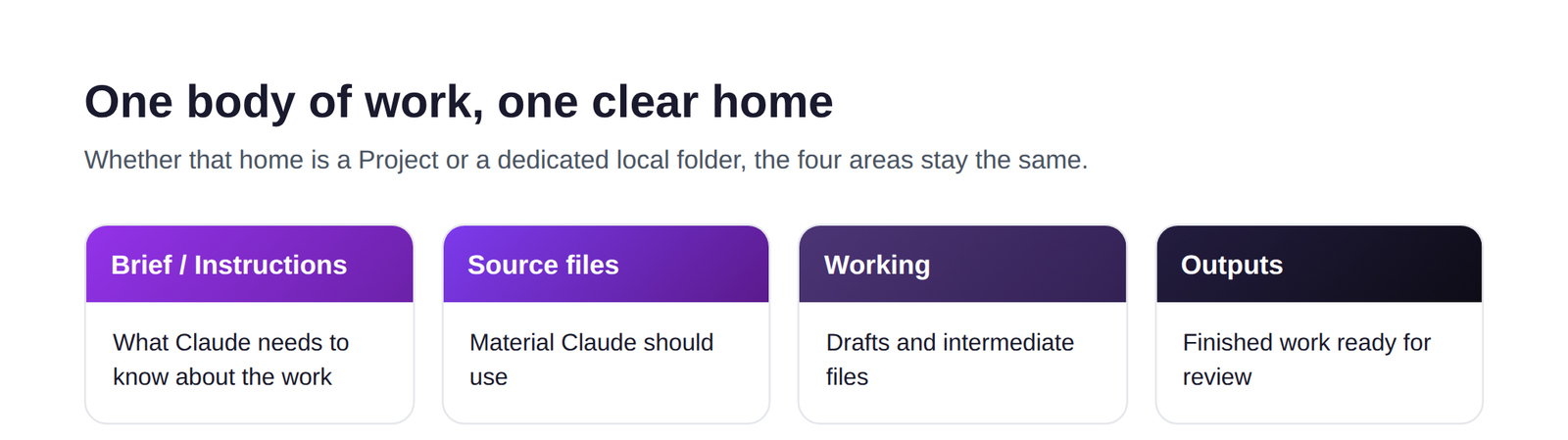
Tip 3: stop putting stable information into every prompt. If you type the same paragraph at the top of half your requests, that paragraph belongs somewhere else. Claude now supports account-level instructions, Project-specific instructions, and folder instructions for relevant local workflows.[2] I’d put broad preferences at the highest level: “I work with senior business audiences. Explain unfamiliar AI concepts in plain English. Distinguish fact from interpretation. Never invent a source or statistic.” Then move narrower instructions closer to the work, a client Project might say “this client prefers one-page executive briefings and Canadian spelling,” and a reporting folder might say “never change source files, working files belong in /Working, finished drafts belong in /Out.” Now you’re not spending the first five minutes of every conversation teaching Claude something it should already know.
Tip 4: give Claude a quality bar, not five adjectives. People spend a lot of prompt space describing tone: “make it professional, engaging, conversational, strategic and concise.” What does that actually mean? Those words leave Claude with a surprising amount of interpretation. Instead, show Claude what passes. For a leadership report, your quality standard might say: “a strong briefing can be read in five minutes, leads with decisions and risks, removes status information that doesn’t change anything, distinguishes facts from interpretation, and tells the reader what needs attention next.” Then give Claude an example, if you have one excellent report and one mediocre one, use both and explain why the first works. This matters for time saving because the goal isn’t getting Claude to produce something, Claude can produce something easily. The goal is getting the first version closer to something you’d actually keep.
Tip 5: name the source of truth before the task begins. Business files disagree all the time. One spreadsheet says the campaign spent $82,000, the slide deck says $79,500, an email has an updated number, and the folder has FINAL.xlsx, FINAL-v2.xlsx and the ever-popular FINAL-v2-USE-THIS.xlsx. Claude shouldn’t have to invent your information hierarchy. For repeated workflows, decide in advance which system or file takes precedence, and if no source should automatically win, say that too: “when two approved sources conflict, do not resolve the discrepancy yourself, surface both values and tell me where each came from.” That tiny rule saves a surprising amount of detective work later.
Once the context is set up, look for places where you’re manually transporting information between Claude and the rest of your work. This is where connectors, browsers, Skills and plugins start earning their place.
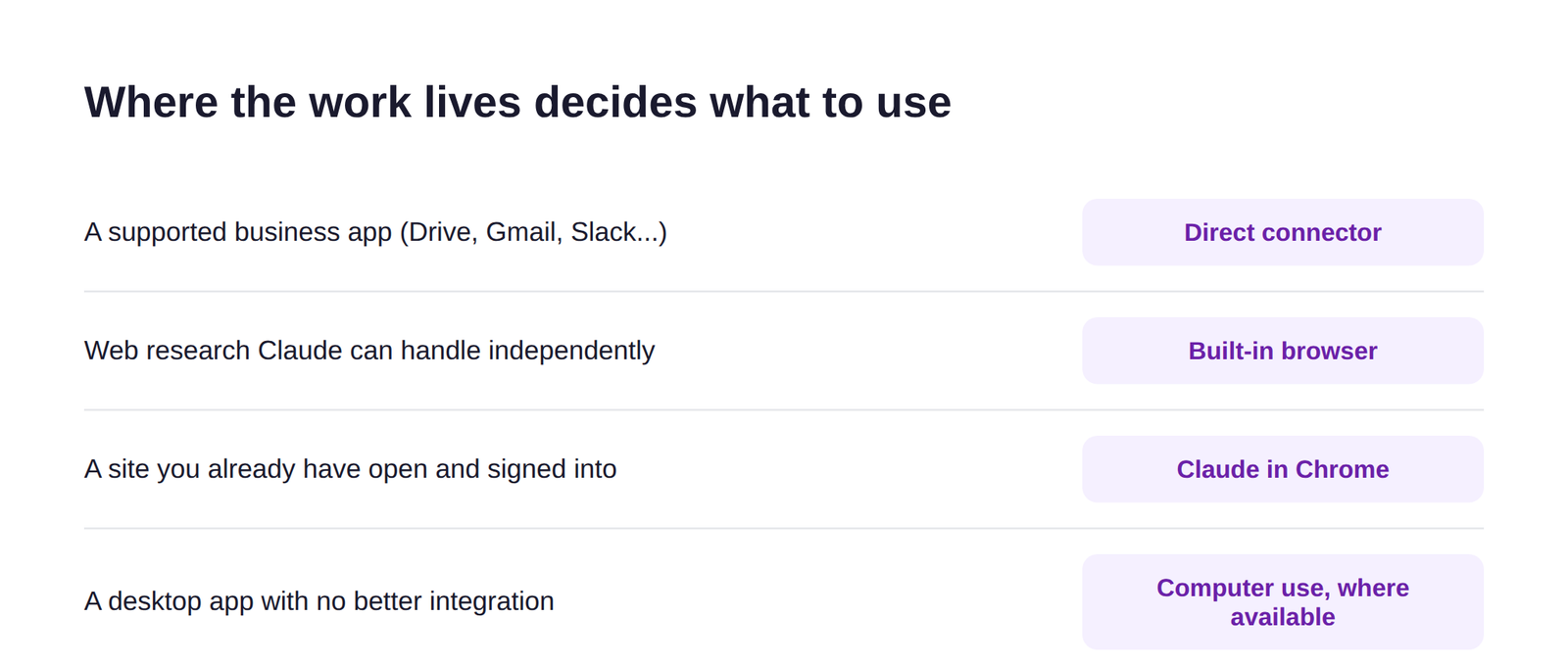
Tip 6: connect the system that owns the information. A connector is useful when it removes a manual handoff. If the work starts in Gmail, letting Claude access the relevant Gmail information directly can beat forwarding messages to yourself, downloading them, uploading them into Claude and explaining where they came from. Claude inherits your own permissions from the connected service, so connecting a service doesn’t grant Claude any access you didn’t already have.[4] The rule: connect what the workflow needs, not everything Claude offers. A competitor screenshot workflow may need no connector at all. A Monday leadership briefing may need Calendar, Drive and Slack. Different job, different access.
Tip 7: prefer a connector over screen clicking when one exists. Claude can now interact with websites and, on some plans, applications on your computer directly, which is useful especially when no integration exists. I still prefer a direct connector when the job has one. If Claude needs information from Drive and a Drive connector can fetch it directly, there’s little value in watching Claude visually open a browser, click through folders and locate the same file, since screen interaction is slower and more error-prone than a direct connection.[6] Use screen interaction when it solves a genuine gap, not because watching an AI move a cursor feels impressive.
Tip 8: choose between the built-in browser and Chrome based on the job. Cowork now has a built-in browser rolling out across desktop, alongside Claude in Chrome, and the two solve slightly different problems. The built-in browser works in its own separate environment in the side panel, nothing to install, and it doesn’t touch your existing tabs or saved logins.[5] Claude in Chrome works in your own Chrome browser, on the page you’re already on, with the accounts you’re already signed into. If you want to hand Claude a web task and keep it contained, the built-in browser makes sense. If you’re already looking at a page in Chrome and want Claude to work with your current session, Claude in Chrome makes more sense. The question isn’t “should I install Claude in Chrome,” it’s “where does this work already live.”
Tip 9: create a Skill when the procedure repeats, not just the task. The old advice was to create a Skill for anything you ask more than once a week. I wouldn’t use frequency as the trigger. A task can happen every day and still change too much to deserve a Skill, while another task might happen once a month and follow the exact same process every time. The better signal is procedural repetition: if you keep telling Claude “first check these sources, then apply these five criteria, use this format, handle exceptions this way,” you may have a Skill. Skills package instructions, scripts and resources Claude loads when a matching task appears, and they’re now available across Free, Pro, Max, Team and Enterprise plans wherever code execution is enabled.[7] I’d build the manual workflow first. Once the process stabilizes, package the repeated procedure, since a Skill makes a procedure repeatable, and you want to like the procedure before helping Claude repeat it more consistently.
Tip 10: use a plugin when you need a packaged working environment. Plugins solve a broader problem than Skills. A plugin bundles Skills, connectors and sub-agents together so a role or workflow arrives with more of its setup already assembled, available on paid Claude plans and following your account across supported surfaces.[8] Where this gets useful is team consistency: if your marketing team has a standard campaign-review process needing an analytics connector, a brand-review Skill and a couple of specialist workstreams, packaging that environment can beat asking every employee to recreate the configuration themselves. I still wouldn’t start here. Build the workflow, test the workflow, then package the workflow. A plugin is never a substitute for knowing how you want the work done.
A lot of “prompt upgrades” online look like turning “summarize this” into “act as an expert analyst and provide a comprehensive but concise summary of the following.” That’s mostly a longer sentence. A meaningful Cowork prompt upgrade changes how the work gets executed, not how formal it sounds.
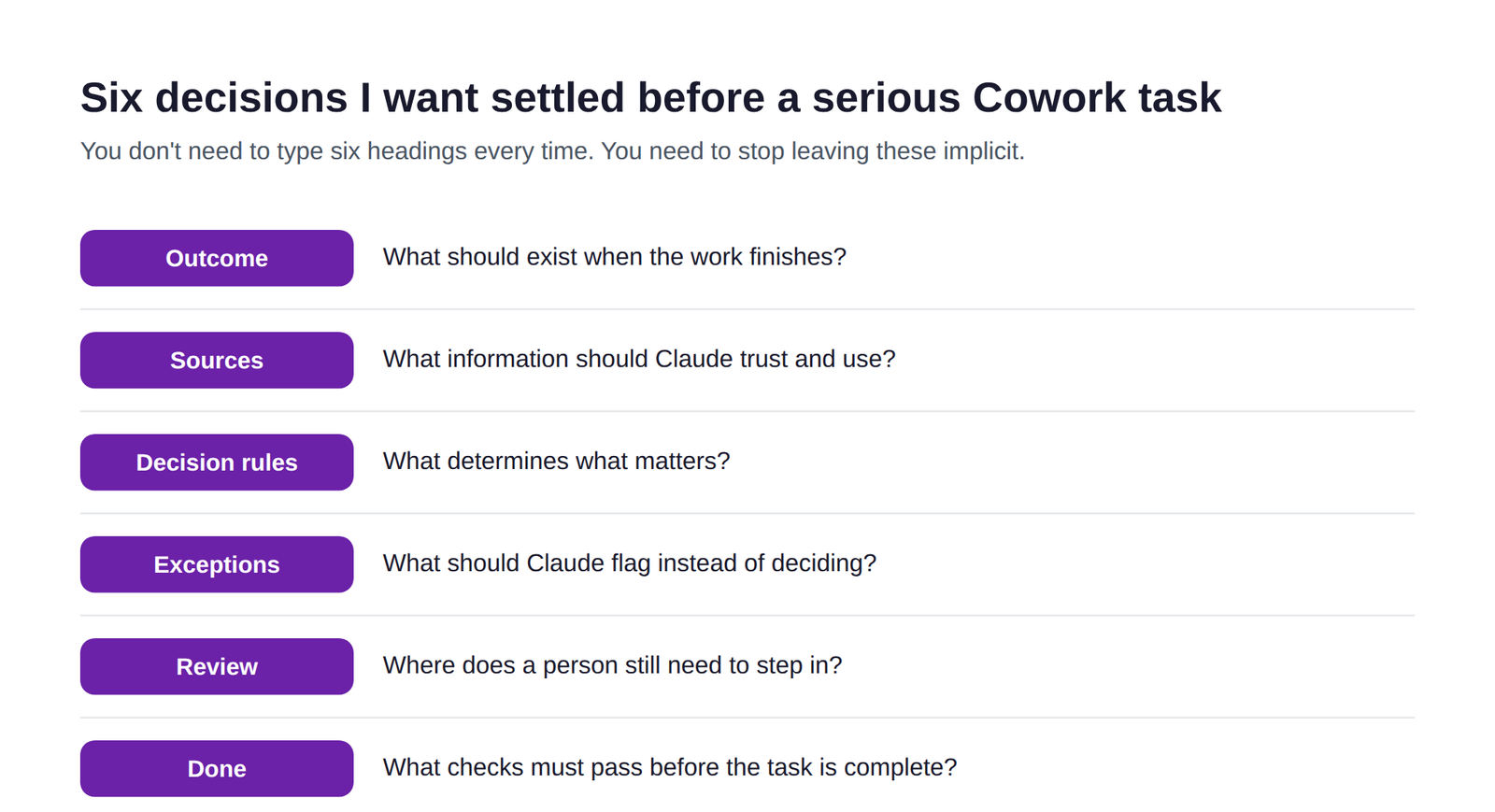
Tip 11: replace task descriptions with delegation briefs. Compare “review these competitors and create a report” with something like: “use the six competitor files in this Project to prepare this week’s one-page competitor briefing for our leadership team. Identify only changes since the previous briefing. For each material change, separate what you observed from why you think it matters. Use the competitor websites as the factual source of truth where the saved material conflicts. Flag anything you can’t verify. Don’t recommend a response unless the change affects pricing, positioning, product, audience or channel strategy. Finished means every factual claim traces to a source and the briefing passes the quality standard in this Project.” The second version isn’t better because it’s longer. It’s better because several business decisions are no longer left to chance: who the work is for, what sources matter, what to ignore, when to escalate uncertainty, when a recommendation is warranted, what format to return, and what finished means.
Tip 12: describe the outcome and boundaries, not every click. There are two bad extremes. One is vague, “clean this spreadsheet.” The other tries to remote-control Claude: “open the file, click column C, sort ascending, go to column D, delete blanks.” If you already know every click Claude should make, you’re still doing most of the planning yourself. A stronger request describes the result and the constraints: “clean this customer spreadsheet so each row represents one complete customer record. Preserve the original file. Move incomplete records to a separate Needs Review tab and state which field is missing. Remove exact duplicates, standardize dates to YYYY-MM-DD, and report how many records were changed, moved or deduplicated.” Now Claude plans the mechanics while you keep control of the decisions that matter.
Tip 13: tell Claude what not to decide. People spend plenty of time telling Claude what it should do and less time defining where it should stop. “If a customer record is missing an email address, flag it, don’t infer the email from the person’s name or company domain.” Or: “if two sources disagree on revenue, show me both numbers and their sources, don’t choose one.” Or: “draft replies to routine scheduling messages. If a message contains pricing, contract language, dissatisfaction or a request for a commitment, put it in Needs My Review instead.” This makes the workflow faster because Claude doesn’t need you to fix an overreach after the fact, you defined the escalation rule before the work began.
Tip 14: put checkpoints where the decision changes, not after every phase. Breaking large work into several sequential requests is sometimes exactly right, and sometimes turns you back into the project manager for work Claude can handle itself. I prefer asking where new information would actually change the direction of the work, that’s where the checkpoint goes. If Claude is researching five possible markets, choosing the two strongest, and building a recommendation, I might ask it to pause after the research and ranking so I can approve the shortlist, rather than pausing after the outline, the slide titles, and every chart. You want decision gates, not constant supervision.
Tip 15: use parallel work when the workstreams are genuinely independent. Claude can coordinate parallel workstreams on complex tasks, but the mistake is treating “parallel” as a magic speed word. It helps when several pieces can be investigated independently using the same criteria: “evaluate Adobe, Canva, Figma and Gamma independently against the six criteria below, using the same scoring evidence for each, then synthesize the results into one comparison.” That’s a better use of parallelism than simply saying “use sub-agents to make this faster,” because the underlying workflow genuinely has four independent research jobs and one synthesis job.
A surprising amount of AI “time saving” disappears during the last mile: the analysis is done, but now you need to turn the output into the right document, check it, rename it, format it, and figure out whether anything is missing.
Tip 16: define the deliverable, not just the file type. Saying “give me a Word document” helps. Going further helps more: “return a Word document titled Q3_Client_Briefing.docx, kept to two pages. Page one contains the executive summary, three decisions and two risks. Page two contains supporting evidence and next actions. Use tables only where they make comparison faster. Include source links as footnotes. No introduction explaining what the document is.” Now Claude knows what the artifact is meant to do, not just what format to save it in. That gap matters even more with spreadsheets and presentations, “make me a spreadsheet” and “build a spreadsheet someone can operate next month without asking me how it works” are completely different standards.
Tip 17: ask Claude to validate the work before handing it back. Don’t only tell Claude what to create, tell it what to check before calling the job complete. For a report: “before finishing, verify every number in the executive summary appears in the source data, every recommendation has supporting evidence, and the report fits within two pages.” For a spreadsheet: “test every formula, identify broken references, confirm totals reconcile with the source file, and create a Checks tab showing the results.” You still review the work. Claude just does a first quality-control pass before you do.
Tip 18: fix the system when you catch a repeated mistake. If you correct the same problem twice, pay attention. If you correct it three times, stop correcting the output and fix the setup instead. If every weekly report contains far too much detail, update the Project instruction: “weekly leadership reports include only information that changes a decision, priority, commitment or risk.” If Claude keeps mixing fact and opinion, add a standing rule separating observations from interpretations. If the same procedure keeps needing five instructions, that procedure may belong in a Skill. A correction should teach the system something whenever the lesson is likely to matter again, that’s where Cowork starts compounding.
Recurring work is where Cowork starts producing larger time savings. It’s also where a poorly designed workflow can repeat its mistakes without anyone noticing.
Tip 19: schedule a workflow only after you trust the manual version. Scheduled tasks can run recurring work in the cloud across paid plans using supported connectors, Skills and plugins, and they keep running even when your computer is asleep, though a schedule can’t be tied directly to a folder on your own computer.[9] That’s useful. I still wouldn’t schedule something the first time it works. Run it manually a few times first, and learn what happens when the Monday report has no meaningful updates, when a source is unavailable, or when two data sources disagree. A schedule multiplies your workflow, so make sure you like what you’re multiplying. A good recurring instruction also says what to do when nothing happens: “produce a briefing only when there’s at least one change that affects a decision, risk, commitment or deadline. If nothing meets that threshold, return a short ‘no material changes’ update rather than manufacturing a report.” That last sentence prevents a lot of recurring AI filler.
Tip 20: review the whole workflow, not Claude’s fastest step. This is the tip I’d put above my desk if I were rolling Cowork out across a company. Don’t measure “Claude created the report in four minutes.” Measure how much work happened from the moment you needed the report until someone could actually use it. Maybe Claude saves 40 minutes of data gathering and adds ten minutes of review, excellent. Maybe it saves 30 minutes of drafting and creates 45 minutes of fact-checking, keep working on the workflow. Maybe it saves an analyst an hour but adds an hour of manager approval because the manager doesn’t trust the output yet, the bottleneck just moved. Anthropic’s own guidance notes that multi-step tasks, code execution, file generation and heavier tool use consume more usage than quick questions, and recommends grouping related work into a single message rather than spreading it across many.[11] I’d review a workflow against four questions: did total time actually fall, not just Claude’s execution time; did quality hold or improve; did review effort stay reasonable, or did the burden just move downstream; and would we keep using this without being reminded to. That’s a much better productivity measure than counting how many Cowork tasks your team launched.
I want to come back to this because I think prompt articles often undersell what Cowork can do. A prompt upgrade should remove decisions you’d otherwise have to make later, not just sound more formal.
| Basic request | Genuine upgrade |
|---|---|
| “Summarize my emails.” | Review unread messages from approved senders in the last 24 hours. Group items needing attention into Decisions, Commitments, Risks and Replies Needed. Ignore newsletters unless they affect a current deadline. Draft replies only for routine scheduling or information requests; anything involving money, scope or dissatisfaction goes into Replies Needed without sending. |
| “Prepare me for my meeting.” | Prepare a one-page briefing for today’s meeting using the Project files, the last 30 days of approved email history and the calendar invite. Include stated priorities, open decisions, commitments made, anything overdue, likely questions, and five questions I should ask. Separate confirmed facts from interpretation. Don’t repeat background that hasn’t changed since the last briefing. |
| “Research our competitors.” | Check approved competitor sources for changes since the previous report. Focus on pricing, positioning, product, audience and go-to-market changes. For every material finding, show the evidence, explain why it may matter, and rate your confidence. If a change can’t be verified from a credible source, leave it out of the main briefing. |
| “Make a report from this spreadsheet.” | Prepare a two-page monthly performance report leading with movements that require a decision. Compare actual versus target and prior month, identify material variances, and test at least two possible explanations before recommending a cause. Don’t treat correlation as causation. Validate every number against the source file first. |
We didn’t add “act as an expert” or “think step by step.” We clarified the job. Original to Future Factors AI.
One thing I’d remove from any older “tips” list is Dispatch as a general recommendation. Anthropic now says Dispatch, the feature for assigning a task from your phone that then runs on your desktop, isn’t available to new users; people who already have it can keep using it, but I wouldn’t build a new workflow around a feature a new reader may be unable to access.[10] I’d also stop telling people that Skills belong only to four paid plans, they now extend across Free, Pro, Max, Team and Enterprise wherever the required code-execution capability is enabled.[7] And I’d no longer make “pair Cowork with Claude in Chrome” the default web advice, since the built-in browser now covers a lot of that ground on its own, with Claude in Chrome staying useful specifically when the work needs the page and session you already have open.
These sound like product details, but they point to a larger lesson: Cowork changes quickly. Build your workflow around the job, not around one temporary button.
After watching people use agentic AI, I keep coming back to the same few patterns. The first is giving Claude access to a huge amount of information and assuming it’ll know which part matters, context needs structure. The second is micromanaging Claude’s steps rather than giving it the outcome, boundaries and decision rules. The third is reviewing everything at the same level, a formatting choice doesn’t deserve the same approval gate as a financial commitment or an external message. The fourth is fixing the same mistake in the output instead of fixing the instructions behind the output. And the fifth is automating something before anyone’s worked out whether the new process is actually better than the old one. None of those get solved by a more elaborate prompt. They get solved by better work design.
| If you need… | Use Claude like this |
|---|---|
| A quick answer, critique or thinking partner | Ask in the conversation |
| A multi-step finished deliverable | Delegate the outcome and let Claude work |
| Context that should persist around a body of work | Use a Project |
| A procedure Claude should follow repeatedly | Create or use a Skill |
| A packaged role or team workflow | Consider a plugin |
| Work that should happen on a cadence | Use a scheduled task once the workflow is stable |
| Work centered on a codebase or software development | Use Claude Code |
The old Chat-versus-Cowork table is less useful now that Anthropic is merging those experiences. This distinction, based on the kind of work, should survive more of the interface changes. Original to Future Factors AI.
If I were starting with Cowork again tomorrow, I wouldn’t install every connector, download ten plugins, or spend an hour writing a giant master prompt. I’d choose one recurring piece of work that annoys me, give it a clear home, put the stable context somewhere Claude can reuse it, define what good looks like, connect only the sources the task needs, and delegate the outcome with clear boundaries. I’d watch the first few runs closely, and every correction that repeats would become an instruction, an example, or eventually part of a Skill. Only after the workflow behaved well would I schedule it. That’s where Cowork starts saving meaningful time, not because Claude suddenly types faster than you, but because you stop doing all the little pieces of work around the work. That, for me, is the more interesting promise of agentic AI.
Start with recurring work you understand well, with clear inputs and a result you can evaluate quickly. Weekly reporting, meeting preparation, competitor monitoring, research synthesis and structured document production are usually easier starting points than high-risk external actions.
Length isn’t the goal. Give Claude the decisions needed to complete the task reliably: the outcome, trusted sources, decision rules, exceptions, review points and definition of done. A 150-word delegation brief that settles those questions can outperform a much longer prompt filled with background that doesn’t affect the task.
No, as of September 2026 Anthropic is folding both into one Claude experience, rolling out first to Pro and Max plans. In the newer experience, Cowork capabilities are available from a normal Claude conversation, so you ask for what you need and Claude decides whether it’s a quick response or a longer task.
Use the built-in browser when you want Claude to handle a delegated web task in its own separate environment, without touching your existing tabs or logins. Use Claude in Chrome when the work concerns a page or signed-in session you already have open. Where a direct connector exists for the underlying service, I’d generally start there instead of either browser option.
Create a Skill once a procedure has stabilized and you keep giving Claude the same instructions, checks or examples, frequency alone isn’t the deciding factor, procedural repetition is. Skills now work across Free, Pro, Max, Team and Enterprise plans wherever code execution is enabled. Separately, Dispatch (assigning a task from your phone to run on your desktop) is no longer available to new users; existing users can keep using it, but I wouldn’t design a new workflow around it.
This guide combines Anthropic’s current Claude documentation with the patterns I use when teaching professionals how to move from one-off prompting toward delegated AI workflows. Product claims were re-checked directly against Anthropic’s live Claude Help Center pages and official blog posts in late September 2026, because Cowork’s capabilities keep changing: the September 2026 rollout began merging Chat and Cowork, the built-in browser is rolling out across desktop, Skills now extend across all five Claude plans where code execution is enabled, and Dispatch is no longer available to new users. The delegation framework, workflow recommendations, prompt upgrades and review practices in this article are Future Factors AI working methods rather than Anthropic requirements.
