
Copilot's video tool builds a scripted, voiced, stock-footage draft from a prompt or a PowerPoint in under a minute. Here's exactly how it works, what it can't do yet, and when to reach for it instead of a real editor.

This is a hands-on walkthrough of Copilot’s video creation tool inside the Create hub (m365.cloud.microsoft/create), not a feature list. It covers what the tool actually assembles versus generates, the four ways to start a video, editing your first draft, turning an existing PowerPoint into a video, and a decision rule for when this tool is the right call instead of Sora 2 (Frontier only) or a proper video editor.
A benefits coordinator gets a message on Wednesday afternoon: the new expense policy goes live Monday, and could she put together something short and friendly to explain it before then. Not a slide deck, people stop reading those. A video. Ninety seconds, maybe two. She has never opened a video editor in her life, there’s no budget for an agency, and the person who usually helps with this kind of thing is out until next week.
This is the exact gap Microsoft built its Copilot video tool to close, and it’s worth being precise about what that gap actually is. It’s not “professional video production is now free.” It’s “a person with zero editing skill and a real deadline can get a workable first draft without waiting for someone else’s calendar to open up.”
Copilot’s video creator lives inside the Create hub at m365.cloud.microsoft/create, and it runs on Clipchamp, the video editor Microsoft already owns. You type what you want, or hand it a PowerPoint you already made, and it comes back with a scripted, narrated, stock-footage video in under a minute. That part is genuinely useful. What happens next, editing it, understanding what it did and didn’t do, deciding whether it’s even the right tool for the job, is the part most explanations skip. That’s what this guide covers, with the real screens.
If you’re looking for how to schedule Copilot prompts to run automatically instead, that’s a different feature entirely, covered in our guide to scheduled prompts in Microsoft 365 Copilot. This piece is specifically about turning a prompt or a document into a video.
Here’s the part that’s easy to get wrong, and it’s the reason this guide exists. When most people hear “AI creates a video,” they picture something like Sora, typing a scene and getting back footage nobody filmed. That’s not what happens when you click Create a video in Copilot today, for the vast majority of Microsoft 365 users.
Microsoft is direct about this in its own documentation: there is no generation of pixels, images, or video clips during the composition process.[1] What Copilot actually does is write a script from your prompt, generate an AI voice narration to read it, then match that script against a library of licensed stock video, images, and audio to assemble a project in Clipchamp. It’s editing, at machine speed, not filmmaking.
That distinction matters for a reason that has nothing to do with technology and everything to do with what you promise people. If your manager asks for “an AI video of our actual office,” Copilot’s default tool can’t do that. It can build a good-looking, professionally narrated video about your office, using stock footage of offices that look plausible. If you need your actual product, your actual building, or your actual people on screen, you’re looking at a different problem: real footage edited in Clipchamp, or a much more limited capability.
That more limited capability does exist. At Ignite in November 2025, Microsoft announced Sora 2, OpenAI’s video generation model, inside Copilot Create. Sora 2 genuinely generates new video content from a prompt, with physics-aware rendering and synchronized audio.[4] It’s available through Microsoft’s Frontier program, a separate, invitation-based track for organizations testing Microsoft’s most advanced features early, not something that shows up on a standard Microsoft 365 Copilot license. Unless your IT admin has specifically confirmed Frontier access, assume you have the compose version, not the generate version, and plan accordingly.
Based on Microsoft’s own description of how video creation works in Copilot Create. [1][2]
Copilot’s video tool assembles your message from stock footage and an AI voice. It doesn’t invent footage of your actual world, unless you’re specifically on Sora 2 through Frontier.
Here’s what actually happens when you do this, walked through in order, with the real screens from a live run.
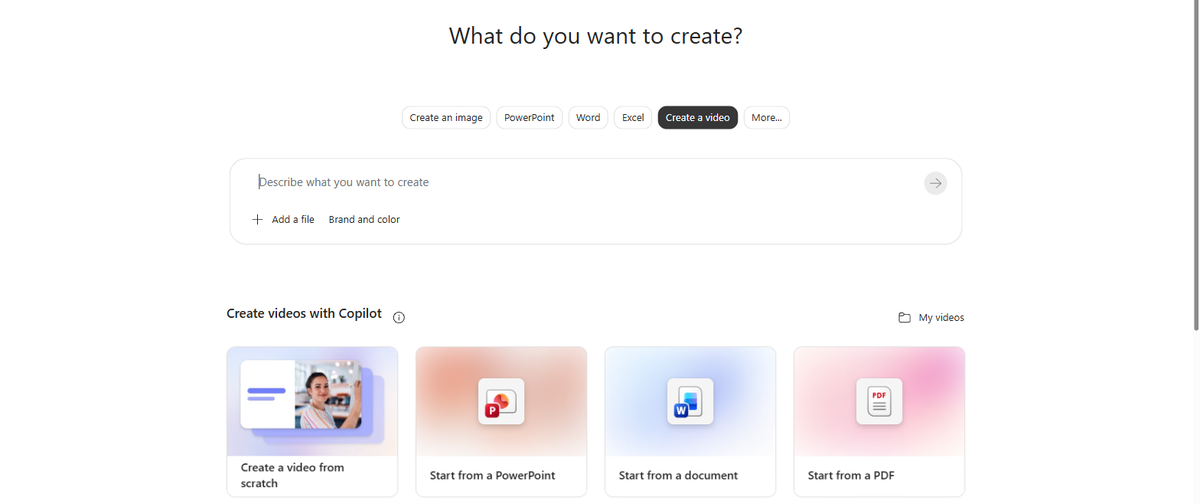
Open the Create hub at m365.cloud.microsoft/create, or select Create from the Copilot app sidebar, and choose the Create a video tab near the top. Four starting points appear: a written prompt from scratch, a PowerPoint, a Word document, or a PDF.
| Starting point | Best for | What Copilot needs from you |
|---|---|---|
| Prompt from scratch | A short explainer, announcement, or social clip with no existing material | A specific description: audience, tone, the 2-3 points it must make |
| PowerPoint | Turning a deck you’ve already built (training, briefing, pitch) into video | An unprotected sensitivity label; protected decks are rejected |
| Word document | Long-form written content you want condensed into a script | Reasonably focused writing; Copilot compresses it, it doesn’t fix a rambling doc |
| Reports, policies, or one-pagers already in final form | A text-based PDF, not a scanned image with no selectable text |
The four options available in the Create hub’s video tab as of September 2026. [1]
For a from-scratch prompt, be specific. Vague input gets you a vague video. Four things worth naming every time, before you hit submit:
Here’s the actual prompt used to generate the draft in the next screenshot:
“Create a short video explaining the top 3 benefits of using AI tools at work for busy professionals.”
Submit it, and Copilot works through a short sequence, writing the script, generating the narration, then, as the in-progress screen puts it, “collecting media” to match footage to each line. In this run, the whole thing took under a minute.
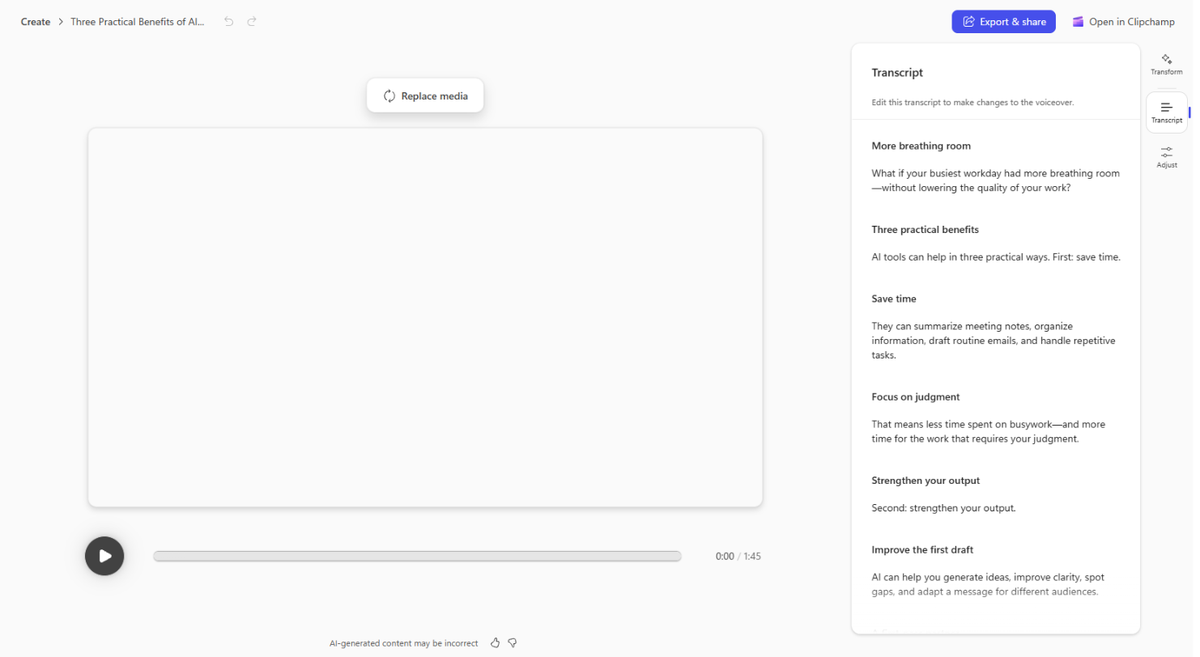
What comes back is a full draft: a titled video project, a transcript broken into script beats down the right side, and two ways forward at the top, Export & share if it’s already good enough, or Open in Clipchamp if it needs work. For the prompt above, Copilot wrote a short script covering saving time, focusing on judgment, and strengthening output, then matched stock footage to each beat automatically. Nobody wrote a shot list. Nobody searched a stock library by hand.
The draft Copilot hands back is a first pass, not a finished product, and treating it as anything else is where this goes wrong for people. Read the transcript before you do anything else. The script is generated from your prompt, which means it inherits every ambiguity in that prompt. A vague brief produces a plausible-sounding script that says something slightly different from what you actually meant.
Small changes, a different narration voice, a different tone, professional instead of casual, swapping the background music, live in an Edit with AI panel next to the preview. Make the change, select Create new draft, and a new version replaces the current one. Don’t like it? Undo brings back the previous version, so experimenting costs nothing but a little time.
Bigger changes, replacing a specific stock clip that doesn’t fit, adding your own footage, adjusting timing, need the full Clipchamp editor. Select Open in Clipchamp from the top of the screen, and you’re in a real timeline editor with your AI draft as the starting point rather than a blank project. If your organization uses brand kits, apply one before you export, so the video carries your actual colors and logo instead of Copilot’s generic default look.
Treat the first video Copilot hands you as something to fix, not something to publish. The minute you saved by not writing a script yourself is the minute you owe to actually reading what it wrote.
When you’re happy with it, Export & share renders the final file as an MP4. Copilot saves the underlying project to your organization’s OneDrive, in a folder named Clipchamp, so it’s there to revisit next quarter rather than something you have to rebuild from scratch.
This is the option that saves the most time, and it works differently enough from a blank prompt that it’s worth calling out on its own. Instead of describing what you want, you point Copilot at a PowerPoint deck you’ve already built, a training module, a client briefing, a quarterly update, and it pulls the content straight from your slides to write the script.
There’s one real restriction worth knowing before you try it. Microsoft only allows this with PowerPoint files that carry no sensitivity label, or an unprotected one. Look for a lock icon layered over the label’s shield. A label without the lock, something like a plain “General” tag, is unprotected and will convert. A label with the lock, “Recipients Only” and similar, is protected, and the system rejects the upload outright with an error message rather than silently failing.[1] Microsoft has said it’s working to support protected labels in future releases, but that’s not live as of this writing.
One detail that catches people out: the video Copilot generates does not inherit the sensitivity label from the source file. If your deck was internal-only, double-check who can actually access the resulting video before you share it anywhere. Converting formats doesn’t automatically carry your classification along with it.
A deck that already has your talking points in it is a faster, more accurate video brief than a blank prompt box. Use content you’ve already approved instead of re-explaining it from scratch.
Who actually reaches for this tool, and for what, depends heavily on the role. A marketing coordinator putting together a quick social teaser mostly cares whether the stock footage looks distinctive enough not to feel generic. An HR or L&D coordinator building onboarding or policy videos cares more about accuracy, since a script Copilot invents around a vague prompt can misstate a real policy detail. An executive assistant recapping a meeting or event cares about speed above almost everything else, and is the least likely to ever open the deeper Clipchamp editing tools. For a broader, role-by-role look at where Copilot fits across a leadership team, see our role-by-role guide to Microsoft Copilot for executives. The video tool is the same for everyone. What “good enough” means is not.
The decision rule underneath all of that: reach for Copilot’s video creator when the job is turning words you already have, or words you can write in two sentences, into something watchable, fast, using stock footage and an AI voice that don’t need to be your actual people, place, or product. Reach for something else the moment any of that stops being true.
If you’re still deciding which AI assistant to build this kind of workflow around in the first place, our comparison of Microsoft Copilot and Google Gemini covers the broader trade-offs; this guide is specifically about what Copilot’s own video tool can and can’t do today.
| What Copilot does | What the human still owns | How it gets checked |
|---|---|---|
| Writes a first-pass script from your prompt or document | Confirms every factual claim and policy detail in that script is actually correct | Read the transcript panel line by line before export, every time |
| Picks a narration voice and matches stock footage to the script | Decides whether the tone and imagery fit the audience and the brand | One full playback of the draft before sharing, not just a skim of the thumbnail |
| Assembles a Clipchamp project in under a minute | Decides whether this video needed to exist at all, or whether a two-line email would have done the job | Ask before building: will anyone actually watch this, or is it motion for its own sake |
The split between what Copilot’s video creator does automatically and what still needs a person’s judgment.
Start small. Pick one recurring video you already have to make, an onboarding clip, a monthly recap, a policy explainer, and run it through Copilot once. Read what it wrote before you send it anywhere. That single habit, reading the script instead of trusting the thumbnail, is the difference between a tool that saves you time and one that quietly puts something wrong in front of your whole team.
You need a commercial Microsoft 365 account tied to your work or school Entra ID, with access to Copilot Chat, and your admin has to enable Clipchamp for your organization first. Without both of those, the Create a video option won’t appear in the Create hub, even if you can already see Copilot Chat elsewhere.
By default, it uses stock. Copilot writes a script and an AI voice narration, then matches that script against Clipchamp’s existing licensed stock library, the same footage source Clipchamp has always used for manual editing, just selected automatically instead of searched by hand. Genuinely AI-generated footage runs through a separate feature, Sora 2 in Copilot Create.
Yes. Open the Create hub, select Create a video, and add your PowerPoint file instead of typing a prompt. It works with unlabeled decks and decks carrying an unprotected sensitivity label; a protected label, identifiable by a lock icon over the shield, blocks the upload outright.
Copilot’s standard video tool and Sora 2 are two separate features inside the same Create hub, not two settings on one tool, and there’s no visible toggle to switch between them. If your organization has Frontier access, Sora 2 options simply appear in Create. The reliable way to check is to ask your Microsoft 365 admin whether your tenant is enrolled in the Frontier program, rather than assuming from what you happen to see on screen.
Finished projects save to your organization’s OneDrive, inside a folder named Clipchamp. When you’re ready to share, select Export & share to render the video as an MP4 file you can send anywhere or upload to another platform.
This guide is based on Microsoft’s own current support documentation for Copilot Create and Clipchamp (fetched and verified in September 2026), plus a live, hands-on run of the actual video creation flow inside a real Microsoft 365 tenant. Both screenshots in this article are from that session, not staged or generated. One figure, an oft-cited stock-library size for Clipchamp, could not be confirmed through a source we could directly read, so it was left out rather than guessed.
