
A plain-English starting point for Word, Excel, Outlook, Teams and Copilot Chat, built for someone who hasn't really started using it yet.

Microsoft Copilot isn’t one feature, it’s several: a chat assistant that comes at no additional cost with an eligible Microsoft 365 subscription, a separate paid add-on that reads and writes inside your actual documents, email and meetings, and a pair of research agents layered on top. The fastest way to get real value out of it is to start on whichever app already eats most of your week, whether that’s Outlook and Teams, Word and PowerPoint, or Excel, and add the rest later. This guide walks through what to expect from each surface, what still needs a person, and a short scored checklist for deciding when you’re ready to add a second one.
A brand manager at a 40-person marketing agency has had Microsoft 365 Copilot since June. It’s late September now, and she’s opened it exactly twice: once during the lunchtime training session IT ran the week it launched, and once last week, by accident, when she meant to click something else in the Word ribbon.
That’s not a story about her falling behind. It’s the most common outcome of a Copilot rollout, and it has very little to do with the tool itself. The license gets bought at the company level, IT flips a switch, a Copilot icon shows up in Word, Excel, Outlook and Teams, and almost everyone keeps doing exactly what they did the week before. The tool is on. The habit hasn’t moved, and nobody told her which of the five apps to actually start with.
The license going live and the way you work actually changing are two different events. Only one of them happens automatically.
If you’ve had Copilot for a while and mostly ignored it, or you’re about to get it and aren’t sure where to point it first, this is for you. Not a feature tour. A place to start, based on what your actual week looks like.
The mistake most people make isn’t ignoring Copilot. It’s trying to learn all of it at once, a bit of Word here, a bit of Excel there, a Teams summary every so often, none of it sticking because none of it lines up with where the actual bottleneck in their day sits.
Here’s a better way to decide. Look at what eats most of your working week right now, then start there, on a real piece of work you already have, not a made-up test prompt.
| If most of your day is… | Start here | Try this first | What “working” looks like |
|---|---|---|---|
| Email and back-to-back meetings | Outlook and Teams | Catch up on a meeting you joined a few minutes late | A short summary with names attached, not a transcript dump |
| Writing documents, proposals or policies | Word | Turn a rough draft or a bullet list into a structured first pass | A document you’ll still rewrite, but didn’t have to start from blank |
| Building decks and slides | PowerPoint | Turn an existing document or outline into a slide skeleton | A rough deck to reorganize, not a finished presentation |
| Spreadsheets and numbers | Excel | Ask it to explain a formula, or summarize a data range in plain English | A shortcut past “what does this even show,” not a finished analysis |
| Pulling information from several places before deciding something | Copilot Chat | Ask one real question that spans a few files or a web search | A structured, cited answer instead of six open browser tabs |
A starting point, not a checklist to complete all at once. Pick the row that matches most of your week.
Notice what the table is doing: matching one starting point to one kind of day, rather than telling you to turn on every feature in every app at once. Once that first surface is actually working for you, not “used once,” working, the next one gets easier to add, because you already know what a good Copilot output looks like versus a lazy one.
Start Copilot on work you already have piled up, not on work you’d have to invent to justify the license.
Before you go looking for the Copilot button, it helps to know there isn’t just one Copilot. Microsoft ships three layers under the same Copilot name, and mixing them up is a common reason someone tries it once, gets a disappointing answer, and writes the whole thing off.
Copilot Chat is the layer most people meet first: a web-grounded assistant you can open at m365.cloud.microsoft or from a sidebar in Word, Outlook or Teams, and it comes at no additional cost with an eligible Microsoft 365 subscription your organization is already paying for.[1] Ask it a general question, paste in a document, upload a file, and it works with what you give it.
Microsoft 365 Copilot, the per-app add-on, is a separate license. This is the version that reads your actual mailbox, your calendar, the meeting you were just in and the files sitting in your OneDrive, without you having to paste anything in first.[2] It’s why it can summarize an email thread you haven’t opened yet, because it can already see it. Depending on your organization’s plan, that add-on runs somewhere in the region of $18 to $30 a seat a month, on top of whatever you already pay for Microsoft 365.[1]
Sitting on top of both, Researcher and Analyst are agents built for slower, multi-step work. Researcher pulls together a cited, structured report across your files, email and the open web, and Analyst reasons over messy data the way a junior analyst would, minus the coffee breaks. Both became generally available in mid-2025 and live inside the Agents panel in Copilot Chat.[8]
| Layer | What it actually does | Where you’ll find it | Cost |
|---|---|---|---|
| Copilot Chat | Works with what you give it: a pasted paragraph, an uploaded file, a plain question | m365.cloud.microsoft, or a sidebar in Word, Outlook and Teams | At no additional cost with an eligible Microsoft 365 subscription |
| Microsoft 365 Copilot (per-app) | Reads and writes inside your own mailbox, calendar, meetings and files automatically | The Copilot icon inside Word, Excel, PowerPoint, Outlook and Teams | A separate add-on license, roughly $18 to $30 a seat a month depending on plan |
| Researcher and Analyst agents | Multi-step research and data reasoning across your files, email and the web | The Agents panel inside Copilot Chat | Included with an eligible Copilot license |
Confirmed against Microsoft’s own pricing and product documentation, checked September 2026. Copilot’s licensing shifts often, so double-check before you budget for it.
None of this is niche anymore. Microsoft told investors it had crossed 30 million paid Microsoft 365 Copilot seats worldwide by its most recent quarter,[9] and its own 2026 workplace research found close to half of all Copilot chat conversations now go toward analysis and problem-solving, not just drafting text.[10] The tool most people still associate with “write me an email” is mostly being used for something else.
Three places you’ll actually run into it this week, before you open a single menu:
Outlook on the web is a good example of what to scan for. At the top of the screen there’s a “Search or ask Copilot” box in the title bar, a “Schedule with Copilot” button in the Home ribbon, and a Copilot icon in the left-hand rail. These screens are Outlook only, with nothing captured for Word, Excel or PowerPoint, and Microsoft says chat experiences in its apps vary with your tenant configuration and license, so expect your own screen to differ a little.[2]

A regional sales manager’s Tuesday pipeline review starts at 10. She’s twelve minutes late, still finishing a call with a client whose renewal just wobbled. She joins anyway, and Copilot in Teams sends a quiet notification offering to catch her up.[5]
That’s the shape of what this surface is good for. Join a meeting late, or miss it altogether, and Copilot will reason over the transcript and chat to answer a specific question, something like “what did we decide about the Q4 target,” rather than handing you a wall of text you have to read anyway.[5] After the meeting ends, Recap adds an AI-written summary and follow-up tasks, plus markers for who spoke and when, all attached to the meeting itself so you’re not hunting through a chat thread for it later.[6]
Outlook works the same muscle for email. It can summarize a long thread with citations back to the specific messages, draft a reply you then shorten, lengthen or retone, and turn a thread into a meeting invite with the attendees and agenda already filled in.[4]
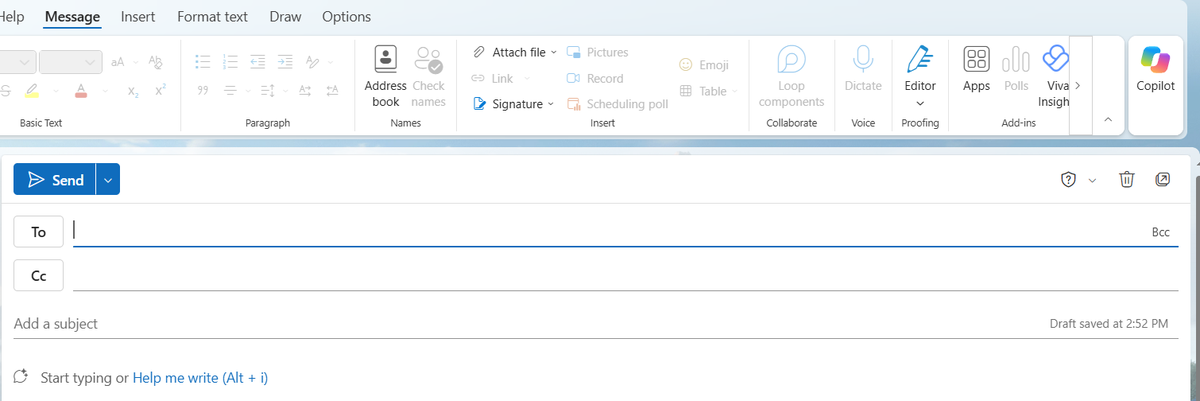
To find the drafting entry point in Outlook on the web, open a new message. The Copilot button sits at the right end of the Message ribbon, and the empty body shows the prompt “Start typing or Help me write (Alt + i)”. That’s the window you start from, before any instruction has been typed.
The decision rule here is narrower than “use it for email.” Reach for Copilot in Outlook and Teams when the problem is catching up, not when you need it to make the actual call. It’s built to reconstruct what happened. Deciding what matters, and following up on the part that never made it into the transcript, a hallway comment, a look across the table, is still yours.
An HR generalist at a 200-person logistics company just got a six-page redline back from legal on the flexible-work policy. She needs a clean, staff-facing version ready by Monday, in plain English instead of legal English, and it’s already Thursday afternoon.
This is what Word’s Copilot is actually for: taking material that already exists, in whatever rough shape it’s in, and producing a structured first pass. Feed it the redline and a couple of sentences about tone and audience, and it drafts something with headings and plain language already in place, something she’ll still rewrite, but doesn’t have to start from a blank page to get.[2]
PowerPoint works from the same instinct. Point it at an existing Word document or a rough outline, describe the audience, and it drafts a slide skeleton, asking a few clarifying questions about style and images along the way rather than guessing.[7] What comes back is a starting deck, not a finished one. The images, the actual argument order and anything brand-specific almost always need a real pass.
If your version of this is turning a subject-matter expert’s rough notes or an old deck into training material, the questions are similar but the details differ enough that they deserve their own treatment. If you’re specifically in L&D, here’s the practical, prompt-by-prompt version built for that exact job: how L&D teams can use Microsoft Copilot. This guide stays at the general level; that one gets specific.
A financial analyst has three exports open in three tabs at 4pm on a Friday, none of them labelled the same way, and the weekly numbers are due first thing Monday. He doesn’t need Excel to build the whole thing for him. He needs it to stop him losing twenty minutes figuring out what a formula from last quarter’s version is actually doing.
That’s closer to what Copilot in Excel is built for: explaining a formula in plain English, suggesting a formula or a calculated column for something you’d otherwise have to Google, surfacing insights in a chart or PivotTable, and turning a plain-English request like “show sales growth between Q2 and Q3” into an actual chart.[3] It works best on data that’s already reasonably clean and tabular, stored on OneDrive or SharePoint, not a spreadsheet held together with merged cells and three different date formats.[3]
The decision rule for Excel is worth taking more seriously than the other four, because a wrong formula looks exactly like a right one until someone downstream acts on it. Reach for Copilot to translate a data question into a formula or a chart, not to hand you a number you then repeat in a meeting without opening the formula bar first.
Across all five surfaces, the split is the same, even though the work looks different in each one. Copilot produces a fast first pass grounded in something real. You decide whether that pass is actually right, and whether it’s ready for someone else to see.
| What Copilot does | What you still own | How it gets checked |
|---|---|---|
| Drafts a first-pass summary of a meeting you missed, with citations back to the transcript and chat | Deciding what’s actually decision-relevant, and following up on anything the transcript couldn’t capture | Skim the transcript yourself once a week, spot-check, don’t rubber-stamp the summary |
| Suggests a formula or surfaces an insight from a data range or PivotTable | Confirming the formula does what you think it does, and that the underlying data was clean to start with | Open the formula bar before you repeat the number in a meeting |
| Turns a rough draft, brief or existing document into a structured first pass at a document or deck | The actual argument, the tone for this specific reader, and what to cut | A second read, ideally by someone else, before it goes external |
The split holds across every surface in this guide, even though the work looks different in each one.
None of that is a knock on the tool. A first pass that would have taken forty minutes now taking four is a genuine win, worth having even on the days it needs heavy editing. The mistake is treating “it produced something” as the same thing as “it produced something correct.”
Skip the two-hour training module for now. The fastest way to find out whether Copilot is actually useful to you is to run it against something real, this week, on the surface you picked earlier in this guide.
Three uses in, you’ll have a rough sense of what it’s good at and what it isn’t. That’s the moment to check whether you’re actually ready to add a second surface, or whether you’re still at the “opened it during the training session” stage. Usage alone doesn’t tell you much. Whether you’re still opening it two weeks later without a reminder does, and so does whether anyone else would notice a difference in what you’re producing.
| Question | What it measures |
|---|---|
| You’ve used your starting surface on real work, not a test prompt, at least three times | Use |
| You know one thing it’s already good at, and one thing you still don’t trust it for | Use |
| You’ve caught it being wrong at least once, and you know what “wrong” looked like | Use |
| You’re still opening it two weeks later without a reminder from your calendar or IT | Persistence |
| Someone else would notice a concrete difference in what you’re producing, faster turnaround, cleaner first drafts | Impact |
Score one point per “yes.” 0-1: stay on your first surface a bit longer. 2-3: add a second surface from the earlier table. 4-5: Copilot Chat and the Researcher and Analyst agents are worth exploring next.
None of this works if the underlying material is a mess, and none of it removes the need to check the output before it goes anywhere that matters.
A few specific limits worth knowing before you lean on this at work. Copilot’s per-app access to your files and mail respects your organization’s existing permissions, so it can only reason over what you could already open yourself, reassuring for security, occasionally frustrating when it can’t see a file a colleague thinks it should. PowerPoint drafts need a real design and argument pass almost every time. Excel formulas need to be checked, not trusted, especially on anything you didn’t build yourself. And nothing here understands your organization’s politics, your specific reader, or the version of “done” your manager actually wants, which is most of what makes a piece of work good rather than merely finished.
A few signs it’s time to slow down and check the output yourself, rather than sending it on:
None of that means applying one blanket level of trust across every job in the building either. A first-line manager drafting a performance review, a financial analyst preparing a number for the board, and a marketer writing copy that will run externally are all using Copilot on real work, but the amount of checking each one needs before it leaves their hands is different, and worth being honest about rather than treating everyone’s Copilot use the same way.
Copilot Chat works with whatever you actively give it: a pasted paragraph, an uploaded file, a plain question. It comes at no additional cost with an eligible Microsoft 365 subscription. The Microsoft 365 Copilot add-on is a separate paid license that lets Copilot read your mailbox, calendar, meetings and OneDrive files automatically, without you attaching anything first, which is why it can summarize an email thread you haven’t opened yet.
In Outlook on the web, look for the Copilot button at the right end of the Message ribbon when you write a new message, the Search or ask Copilot box at the top of the screen, and the Copilot icon in the left-hand rail. Word, Excel and PowerPoint also carry a Copilot icon or button, but interface details vary by app, version and license, so check your own screen. In Teams, it appears as a Copilot tab inside an active meeting, and after the meeting it shows up inside Recap. You can also skip the apps entirely and open Copilot Chat directly at m365.cloud.microsoft.
It comes at no additional cost, but only with an eligible Microsoft 365 subscription, which most workplaces issuing it already pay for. The real catch is that Copilot Chat on its own can’t automatically see your mailbox or files the way the paid per-app add-on can. You’d need to upload or paste that material in yourself.
Only the ones you could already open yourself. Copilot’s access to organizational data is permission-aware, meaning it works within your existing Microsoft 365 permissions rather than granting new access, so a file you can’t open in SharePoint isn’t something Copilot can read on your behalf either.
Open whichever app you’re about to use anyway for a real piece of work. If that’s Outlook, ask Copilot to summarize the thread you were about to read start to finish. If it’s Excel, ask it to explain what a formula you didn’t write is actually doing. The right starting point is less about the app and more about picking one real task instead of a made-up test.
This guide focuses on Microsoft Copilot across Microsoft 365, Word, Excel, PowerPoint, Outlook, Teams and Copilot Chat, at a general, cross-functional level, for anyone who hasn’t properly started using it yet. Every feature described was checked against Microsoft’s own support and licensing documentation in September 2026. The two Outlook on the web screenshots were captured live in September 2026 and show only interface controls, no private data. Interfaces move often, so your screen may differ and specifics may shift after publication. If you’re building Copilot workflows specifically for a learning and development team, see the companion guide linked above.
