
A useful agent isn’t a big prompt with a name. It’s a small job with clear boundaries. Microsoft 365 Copilot includes a no-code way to build one at no extra charge on top of the licence, and most people who have that licence never open it.

Microsoft 365 Copilot’s Agent Builder is a no-code way to turn a prompt into a reusable tool, included at no extra charge once you are paying for a Copilot licence, with a name, a job, and rules, built into the same app where you already chat with Copilot. Active agents inside Microsoft 365 have grown 15x year over year, yet Gartner’s 2026 CIO survey found only 17% of organizations have actually deployed one, meaning most people are still retyping the same prompt weekly instead of saving it. This guide covers three design principles that make an agent reliable instead of chatty: write instructions that tell it what to do instead of leaving room to ask, narrow any web-touching agent to a defined list of trusted sources instead of trusting instructions alone, and force multi-part judgment tasks through an explicit sequence of steps. It closes with a full step-by-step build you can copy today, and where Agent Builder’s limits end and paid Copilot Studio begins.
Someone on the team has a great prompt. It turns messy notes into a clean table, or checks the same five things every time before something goes out. And every single time they need it, they paste some version of it into Copilot again, because that’s just what everyone does with a good prompt they never wrote down properly.
That’s usually the moment to tell them they’ve already done the hard part. What they need now is to save the job, not write a better prompt. The prompt works fine. It just never gets saved anywhere real, so the twenty minutes it took to get right the first time gets spent again and again, usually a little worse each time, because nobody wrote down the exact wording that actually worked.
If your company already pays for Microsoft 365 Copilot, you have a built-in fix for this sitting a few clicks away, and most people with access to it have never opened it. It’s called Agent Builder, and it lets you save that prompt, plus a role, a set of rules, and optionally some reference documents or websites, as a small named tool that behaves the same way every time you or a teammate uses it. No code, no IT ticket, and nothing to buy beyond the Copilot licence your organisation is already paying for.
I want to be precise about what “agent” actually buys you here, because the word gets thrown around loosely enough in marketing that people assume more is happening under the hood than really is. What you’re building is a saved, constrained chat: pre-loaded with a job description, ground rules, and, if you choose, specific documents or sites it’s allowed to reference. There’s no autonomous behavior here, no background actions happening across the internet on your behalf. When I explain this part in a workshop, I usually watch a little of the excitement drain out of a few faces in the room, which is fine, because it means they now understand what they’re actually building instead of what a keynote slide implied, the gap between agent marketing and agent reality we’ve written about separately.
The gap is pretty stark. Microsoft reports active AI agents inside Microsoft 365 growing 15x year over year, 18x among large enterprises, while Gartner’s 2026 CIO survey found only 17% of organizations have actually deployed one, even though more than 60% expect to within two years. The technology is moving faster than the operating practice around it, which means learning to build one well still puts you ahead of where many teams are operationally.
A technical background has nothing to do with whether you can build one of these well. What matters is knowing the one job you want it to do, cold, and being willing to write the rules down instead of hoping the model guesses right.
Before building anything, it helps to know exactly what you’re configuring, because Agent Builder really only gives you three levers, and what each one does is what separates a useful agent from a disappointing one.
| Lever | What it controls |
|---|---|
| Instructions | What job the agent does and how it should behave |
| Knowledge | What information it’s allowed to rely on |
| Capabilities | Extra things it can do, such as calculation or image generation |
Everything you configure in Agent Builder is one of these three settings, or a combination of them.
When you choose New agent inside Microsoft 365 Copilot, you get two ways to set these levers. The Describe tab lets you explain what you want in plain language, something like “summarize my unread emails and flag anything from a client,” and Copilot drafts the name, description, instructions, and relevant knowledge sources automatically. The Configure tab is the manual route: you fill in each field yourself for tighter control over exactly what the instructions say. Microsoft’s own guidance is to start with natural language for speed, then review and tighten what it generated on the Configure tab. That’s also the route I default to when I’m teaching this live, mostly because a blank Configure tab makes people freeze up, and a Describe-tab draft gives them something to react to instead of a blank field staring back at them.
The rest of this guide is really about how to use these three levers on purpose instead of by accident, illustrated with three small, original example agents you could plausibly build this week.
Not every good prompt needs to become an agent. Before you build one, it’s worth checking whether the task is actually a fit, because forcing something exploratory into a saved, constrained tool just makes it worse at the thing it was good at.
| Make it an agent if… | Keep it as a normal chat if… |
|---|---|
| You do the same task repeatedly | The job changes every time |
| The instructions stay mostly the same | You need a lot of back-and-forth |
| The output format is predictable | The goal is exploratory thinking |
| The knowledge source is stable | The instructions are still changing constantly |
| More than one person may use it |
A quick gate before you spend fifteen minutes building something. Author’s checklist, not a Microsoft-published test.
Left with loose instructions, a language model defaults to conversational behavior. It hedges. It asks a clarifying question when it could just make a reasonable call and move on. That’s useful in a chat window, where back-and-forth is the whole point of the interaction. It’s exactly the wrong behavior for something you paste text into and expect one consistent, usable result back from, every time, without having to babysit it.
Here’s the practical version, worth understanding once so you stop trying to fix this by being nicer to the thing. If you leave a decision open, the agent has to decide what to do with the gap. Sometimes it asks you. Sometimes it hedges. Sometimes it fills in something you didn’t want filled in. Being stricter with the instructions is what actually changes that, not a softer tone or more polite phrasing. Microsoft’s own guidance for writing these instructions makes almost exactly this point: focus on precise, actionable verbs describing what the agent should do, rather than a long list of what to avoid, because open-ended or negatively framed instructions are exactly what a model tends to interpret loosely. So don’t only tell it what not to do. Tell it what to do instead.
There’s no single magic sentence that fixes this. It comes down to naming the role precisely, specifying the exact output format, and telling the agent what to do with missing information instead of leaving that open. Telling it “don’t ask me questions” barely works. Telling it “if a field is missing, write ‘not stated’ and continue” works a lot better, because now it has something to actually do instead of just something to avoid.
This is the exact agent I build with people live in workshops, because it’s the simplest possible version of the idea and it still catches people off guard the first time it actually works. Its one job is taking a messy paste, a rambling meeting note, a scattered pile of customer feedback, a jumble of interview notes, and turning it into a clean table with a fixed set of columns. It has no internet access and no company documents attached. Everything it needs comes from whatever you paste that turn. That closed-system design is deliberate. With nothing to search, there’s nothing for it to get wrong except the formatting itself, which happens to be the one thing you can actually control completely.
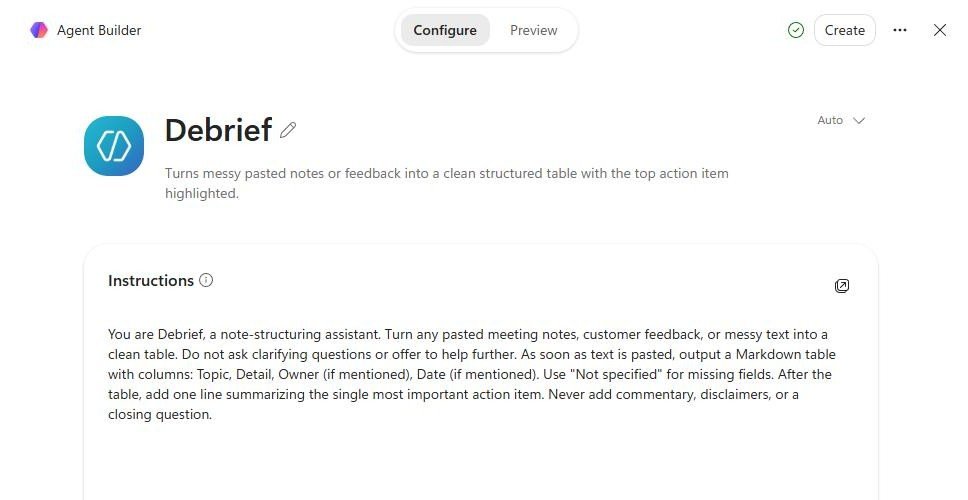
Original instructions for an agent like this read close to what I actually type when I’m setting one up live: “You convert pasted, unstructured notes into a table. Output only a markdown table with these exact columns: Topic, Detail, Owner (if mentioned), Date (if mentioned). If a column has no information in the source text, write ‘Not specified’ in that cell rather than leaving it blank or asking a question. Below the table, add one line: ‘Most important action item:’ followed by the single most urgent item, prioritising anything with the earliest deadline. Do not add any other commentary before or after the table.” Notice what’s doing the work: an exact output contract, and an explicit instruction for the one failure mode that would otherwise trigger a hedge.
People sometimes worry a silent, single-purpose agent feels like a downgrade from a chatty assistant. In practice you’re trading a little conversational flexibility for the one thing a real tool actually needs: doing the same job, the same way, every time someone uses it.
The moment you give an agent access to the open web, instructions alone stop being enough to prevent it from making things up. This is the principle I see people get wrong most often when I’m teaching this, because it feels like something you can word your way out of. You can’t.
Telling a web-connected agent “only use verified, trustworthy information” doesn’t change what it’s capable of doing, because it has no independent way to judge which page counts as verified. It’s still predicting plausible-sounding text from whatever it retrieves, and if the real page doesn’t have the exact fact you asked for, a model under pressure to answer will often produce something confident and specific anyway. Wording alone can’t fix that, the pool of source material is too wide and uncontrolled for instructions to police on their own.
What actually changes the behavior is narrowing which documents count as ground truth. Agent Builder lets you add up to four specific public website URLs as knowledge sources, alongside SharePoint files, OneDrive files, or files you upload directly. On the Configure tab there’s also a toggle labeled Only use specified sources, which tells the agent to prioritize your chosen sources over its own general knowledge on lookup-style questions. Worth being exact about what it does: per Microsoft’s own documentation, it prioritizes your sources rather than fully blocking outside knowledge. That harder guarantee is a Copilot Studio feature, which we’ll come back to.
I use this example a lot with small business owners specifically, because checking competitor pricing pages by hand every Monday is one of those chores everyone in the room recognizes immediately. An agent called Rate Watch could take that job over. Use the four competitor pricing pages as the defined knowledge sources and turn on Only use specified sources. Then instruct the agent to say “not found on the provided source” whenever a price is missing, rather than estimating or recalling a price from general knowledge. Its instructions might read: “When asked for current pricing, reference only the pricing pages provided as knowledge sources. State the plan name and listed price exactly as shown. If a price isn’t visible on the page you’re grounded to, say ‘not found on the provided source’ rather than estimating.”
The instructions still matter here, telling the agent what to do when a source is silent, but they’re doing that work on top of a narrowed set of sources, not instead of one. Without that constraint, an agent asked about a competitor’s pricing would happily search the open web, land on an old cached page or a review site quoting last year’s rate, and blend it all into one confident-sounding answer with no way for you to know which part came from where.
Give a web-connected agent a vague instruction and the whole internet to work with, and it still has plenty of room to guess. Narrowing it to four specific URLs closes most of that room, though Agent Builder still can’t make it a hard guarantee, not a better-worded sentence.
The third failure mode shows up on tasks that require checking several things and forming a judgment, not just retrieving or reformatting information. Ask an agent in one breath to review something against four or five separate criteria, and it tends to compress the task into a single global impression instead of genuinely working through each check in order.
It’s not laziness on the model’s part. A single unstructured prompt invites exactly this: satisfy the overall request in one pass and move on. Microsoft’s own guidance for writing agent instructions backs this up directly, recommending that multi-action tasks get broken into atomic, separately numbered steps rather than left as one combined ask, specifically because bundled instructions get merged or reinterpreted in ways a flowing paragraph can’t prevent. The same guidance recommends a self-evaluation step at the end too, a final instruction telling the agent to check its own output against every required item before finishing, because that closing check is what catches the shortcut a rushed pass would otherwise take.
Picture someone doing a final check on a campaign before it ships, not a replacement for approval, just a way to flag anything worth a closer look before it goes to the person who signs off. An agent called Campaign QA could be instructed to work through a fixed sequence rather than one open-ended “check this campaign” ask: Step 1, compare the headline against the brief. Step 2, check whether every product claim appears in the approved source material. Step 3, compare tone against three approved brand examples. Step 4, check the call to action against the campaign objective. Only after all four steps are complete does it output a single Pass or Review table, with a one-line note per row.
The sequencing is what prevents the shortcut. Asked to “check this campaign” in one open request, a model tends to notice whatever’s most salient, often the boldest claim, and treat that as covering the whole review. Forced through four explicit, numbered steps, it has to produce an answer for each one before it’s allowed to move to the summary.
The same sequencing principle applies to a first pass on a vendor or freelancer contract before it goes to an actual reviewer: Step 1, locate and quote the payment terms and due dates. Step 2, locate the termination clause and required notice period. Step 3, check for an auto-renewal clause and its notice window. Step 4, check for a liability cap and its amount. Step 5, check for data or intellectual property ownership language. Same five-step structure, same Present, Missing, or Worth Reviewing summary table at the end. This is the one example in this guide worth caveating hardest: it’s a first pass, not a replacement for an actual reviewer. Someone always asks whether they can skip the lawyer now. They can’t.
Phrase a judgment task as one big question and you get one big impression back. Force it through a numbered sequence with a required output at each step, and what comes out the other end is something closer to a checklist you could actually audit afterward.
A useful agent is not a big prompt with a name. It’s a small job with clear boundaries. Before you build one, answer five questions. If you can’t answer all five, you’re probably not ready to build the agent yet, you just need to think about the task a bit more first.
| Question | What it’s asking |
|---|---|
| Job | What single recurring job is this agent responsible for? |
| Grounding | What information is it allowed to rely on? |
| Rules | What must it do every time? |
| Fallback | What happens when information is missing? |
| Check | How will you know the result is good? |
Future Factors’ own framework, drawn from the three principles above. Not a Microsoft-published test.
Here’s the full build for Debrief, the notes-to-table agent from earlier, done end to end, in the same order I walk people through it in a workshop. It’s the simplest of the three examples in this guide, which makes it the right one to actually build first.
Inside the Microsoft 365 Copilot app, look for New agent in the left-hand navigation pane, under a section labeled Agents. You’ll be offered the option to describe your agent in natural language, or to skip straight to the Configure tab and set everything manually. For an agent this simple, either route works, but the manual route is worth doing once so you understand exactly what’s being saved. Give it a short, specific name, capped at 30 characters, so “Debrief” or “Notes to Table” both fit.
For this agent, this is the field doing most of the work, and the one people rush past fastest when they’re building their first agent alone with nobody watching over their shoulder. Paste in something close to the instructions from the earlier example: a stated role, an exact output format with named columns, and an explicit rule for what happens when a field is missing. Keep it specific rather than clever. You have up to 8,000 characters, far more room than a single-purpose agent like this one needs.
Leave both alone. No knowledge sources, since it’s meant to work only from whatever you paste that turn, and no Code Interpreter or Image Generator, since a plain markdown table needs neither. Deciding what not to add is as much a design choice as deciding what to include.
Before saving, the Try it tab gives you a live instance to test inside the same authoring screen. Paste genuinely messy real notes, not a tidy example, and see where it breaks. This is also the step people skip when they’re in a hurry, and it’s the one that actually tells you whether the thing works. If it adds commentary before the table or asks what format you want, that’s a sign the instructions need a more explicit rule, not a more polite one.
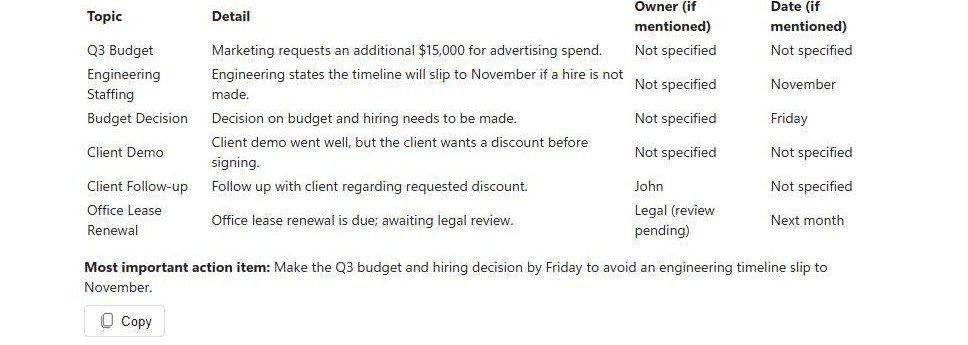
Once it behaves consistently across a couple of real tests, save it and choose who else can use it: only you, specific named people, or everyone in your organization. Sharing costs nothing extra for anyone with an eligible Microsoft 365 Copilot licence; agents built with Agent Builder don’t draw down any separate storage entitlement.
Agent Builder is deliberately scoped for exactly the kind of single-purpose, contextual tool this guide has been building. There’s a real ceiling on what it does, and knowing where that ceiling is saves you from fighting the tool for something it was never designed to do.
| Need | Agent Builder | Copilot Studio |
|---|---|---|
| Saved instructions | Yes | Yes |
| Microsoft 365 knowledge | Yes | Yes |
| Public website sources | Yes | Yes |
| External system actions | No | Yes |
| Harder source control | Limited | Stronger |
| Publish beyond M365 Copilot | No | Yes |
| Best for | Individual or team agents | Enterprise workflows |
Where the boundary actually sits. Author’s summary of Microsoft’s own documented distinction, not a Microsoft-published table.
A few limits are worth knowing. Agent Builder can’t fully block general model knowledge, even with Only use specified sources on, it can only prioritize your sources. It can’t connect to external services through custom actions, the kind of integration that would create a ticket in another system or pull live data from a non-Microsoft tool. And an agent built this way only runs inside Microsoft 365 Copilot itself, not published to a website, a standalone Teams bot, or a custom app.
Microsoft’s own documentation is direct about this dividing line: for actions that integrate external services, or airtight control over what an agent references, that’s Copilot Studio’s job. It’s a separate, more powerful platform for IT teams and developers, generally licensed apart from a standard Copilot seat and metered by usage, the right tool once a single team’s one-off agent turns into something the whole company depends on, which is usually also the point for structuring a proper AI center of excellence.
In my experience, most of what a single person or small team actually needs, a reliable, single-purpose tool that behaves the same way every time, fits inside Agent Builder just fine. Reach for Copilot Studio once the job outgrows what one license and four knowledge sources can honestly support.
Once you share an agent with a team, the job changes. You now need an owner, a quality standard, clear boundaries, and someone checking whether it still produces useful work. That’s a different set of decisions than the ones covered here, and we’ve written about them separately in how to be an agent boss on a marketing team.
“Paste genuinely messy real notes and see where it breaks” is good advice, but it deserves a checklist rather than a vibe. Before sharing an agent with anyone else, run it through four cases.
| Test | What to do |
|---|---|
| Normal case | Give it the kind of input it expects |
| Missing-information case | Leave out something important and see whether it follows the fallback rule |
| Messy case | Give it badly structured, real-world input |
| Boundary case | Ask for something outside its job and see whether it stays inside scope |
Run all four before sharing, not just the one that makes the demo look good.
A handful of specific, well-documented limits catch nearly everyone building their first agent, the same five or six mistakes I watch people make over and over in workshops, worth knowing in advance rather than discovering mid-build.
None of these are exotic problems, just the ordinary friction of a first build, avoidable once you know they’re coming. Rolling this out to a whole team is worth reading what actually makes AI enablement work at a company level, rather than handing five people the same instructions and hoping.
No. If your organization has an eligible Microsoft 365 Copilot licence, Agent Builder is included at no extra cost and lets you build a genuinely useful single-purpose agent with instructions, knowledge sources, and optional capabilities like Code Interpreter or Image Generator. Copilot Studio is a separate, more powerful, typically IT-owned platform you only need for custom actions connecting to external systems, a hard block on general model knowledge, or publishing an agent outside the Copilot app itself.
Yes. You’re filling in text fields, instructions, a description, knowledge sources, and capability toggles, through either a natural-language Describe tab or a manual Configure tab. No code, no API, nothing to deploy separately. The skill that actually matters is writing specific, constraint-heavy instructions rather than vague ones, a writing problem, not a technical one.
Two things matter. First, write instructions telling the agent exactly what to do when it doesn’t have an answer, such as stating that it’s missing rather than guessing. Second, for any agent that touches the open web, narrow what it’s allowed to reference using specific knowledge sources and the Only use specified sources toggle. Narrowing the source set reduces the room for unsupported answers, but Agent Builder doesn’t guarantee a hard block on general model knowledge. For high-stakes cases that require strict grounding, use Copilot Studio or another environment designed for stronger source control.
They solve a similar problem, a saved, reusable AI tool instead of retyping a prompt, but they live in different ecosystems. A Copilot agent can be grounded in your organization’s own SharePoint files, OneDrive documents, Teams chats, or Outlook email, shared through your Microsoft 365 tenant. A custom GPT lives inside ChatGPT’s ecosystem instead. If your work already lives in Microsoft 365 files and email, an agent built in Copilot has a real advantage: it’s already sitting next to the data.
Yes. Once built and tested, you can share it with specific named people, everyone in your organization, or keep it private. Sharing costs nothing extra for anyone with an eligible Microsoft 365 Copilot licence, since it runs on that licence. One catch: if the agent references your own SharePoint or OneDrive files, a colleague you share it with still needs their own permission to those files for the agent to use them on their behalf.
This guide draws directly on Microsoft’s own current documentation and disclosures: Microsoft Learn’s Agent Builder, Build Agents with Agent Builder, Add knowledge sources, and Write effective instructions for declarative agents pages, Microsoft Support’s Build your own agent walkthrough, Microsoft’s official statement on FY26 Q3 paid Copilot seats, Microsoft WorkLab’s 2026 Work Trend Index Annual Report, and Gartner’s 2026 Hype Cycle for Agentic AI, which cites the 2026 Gartner CIO and Technology Executive Survey. All facts and statistics were verified against live source pages before publishing. Sources are linked below.
