
Not another beginner walkthrough. This is what the standalone Copilot app does that the Office add-in doesn't, and how to actually turn each one on.

The Microsoft Copilot app at copilot.microsoft.com, on your phone, or on your desktop isn’t a stripped-down version of Microsoft 365 Copilot in Word and Outlook. It’s a separate product with features the Office add-in doesn’t have: Memory that carries facts between chats, personal connectors that read your own OneDrive, Outlook, Gmail or Google Drive, Copilot Vision for pointing a camera or screen at something instead of typing about it, conversation modes for matching effort to the question, a live sidebar in Microsoft Edge, and a hands-free “Hey Copilot” wake word on Windows. Below: what each one verifiably does, when it’s actually worth reaching for, and which two features got checked and deliberately left out.
A regional sales manager opens the Copilot app on her phone most mornings before her first call. She types a question, reads the answer, closes the app. She’s done this most days for eight months. She’s never turned on Vision. She’s never taught it a single fact about her job. She has no idea it can read her own inbox if she lets it.
She’s not unusual.
Most people use the Microsoft Copilot app the way they use a search engine: type a question, take the answer, move on. That’s a reasonable way to use it. It’s also a waste of a genuinely different product than the one most Copilot advice is written about.
Here’s the distinction that gets lost. The app at copilot.microsoft.com, and the version on your phone or desktop, is not a lightweight preview of the Copilot that lives inside Word, Excel, PowerPoint and Outlook. It’s a separate product, built around your own account rather than one open file, with settings and capabilities the Office add-in doesn’t have at all. We’ve written separately about the hidden features inside that Office-embedded version, if that’s the one you actually use most. Wait, Copilot Can Do That? covers a different set of tricks entirely, because it’s a different piece of software.
| Surface | Where you find it | What makes it its own thing | Reach for it when |
|---|---|---|---|
| The Copilot app | copilot.microsoft.com, iOS/Android, or the Windows/Mac app, signed in with a personal or work account | Its own memory, personal connectors, Vision, conversation modes | The task is personal, spans more than one account, or hasn’t started inside a document yet |
| Microsoft 365 Copilot | The Copilot button inside Word, Excel, PowerPoint, Outlook and Teams | Grounded in your organisation’s files through Microsoft Graph, works inside the open file itself | The work already lives in the exact file or email on your screen |
Both are made by Microsoft and both are called Copilot. Most of what follows only exists in the first one.
Open the app when the work is personal or spans more than one account. Use the button inside the file when the work already lives in that file.
One caveat before the list starts, worth stating plainly. Not everything below is available to every account. Copilot Vision needs a Microsoft 365 Personal, Family or Premium subscription tied to your personal account.[3] A few of the smaller features work with nothing more than a Microsoft account sign-in. I’ll say which is which as we go, rather than let “the Copilot app” do more work than it should.
Say you run a one-person bookkeeping practice out of a spare room. Every new client call starts the same way. You dig up their file in OneDrive, reread last quarter’s email thread in Outlook, try to remember what you promised them back in June. None of that is hard. All of it is preamble, done from scratch, every single time.
The standalone Copilot app can handle that preamble, but only if you let it see the two places the information actually lives: your files and your inbox. That’s what connectors are for. Once you turn on OneDrive, Outlook.com, Google Drive, or Gmail with its calendar and contacts, Copilot can find a file by name, pull up something recent, search an inbox by sender or topic, and check a calendar, all inside the same chat window you already use.[1]
Those are the five listed on the Connectors page we captured, and the list scrolls on, so check yours. Microsoft’s Support page describes connectors as available on copilot.com and the Copilot mobile app, with each service asking you to authorise the connection on its own screen first.[1] On the web, open Settings, then Connectors, and press Connect next to the service you want.
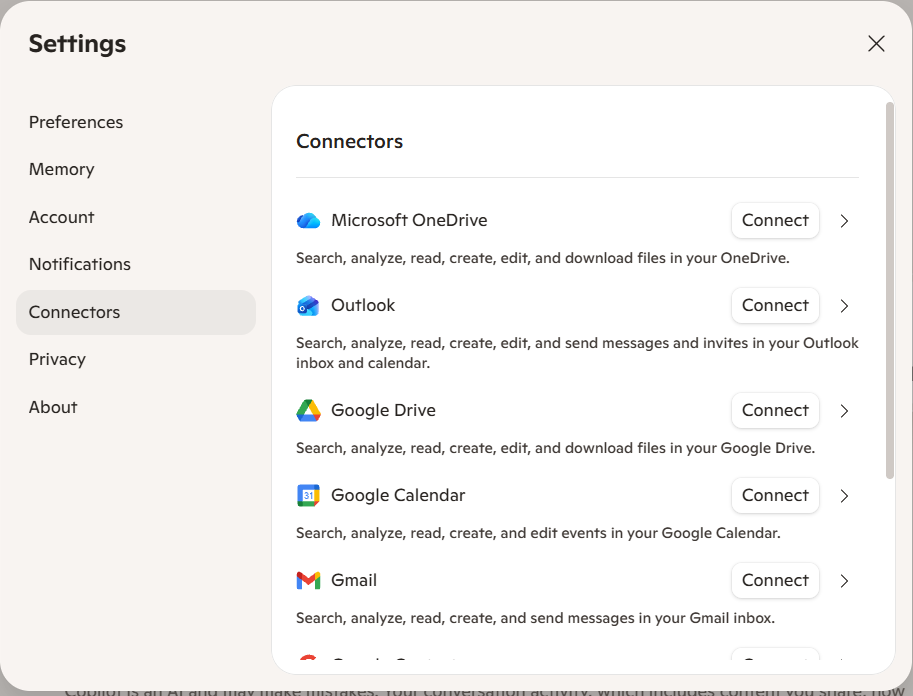
Connectors give Copilot access to what already exists. Memory is different. It’s what Copilot keeps about you between conversations, the kind of thing a competent assistant would just remember instead of asking again.
Teaching it is direct. Type something like “Remember that I prefer a one-page summary, not bullet points” and Copilot saves it. To check what it’s holding, ask “What do you know about me?” and it summarises its own memory back to you. To remove one specific thing, say “Forget that I like gardening.”[2]
The settings live on the Memory page, shown below. The main switch is named “Personalization and memory”, and there’s a separate “Microsoft usage data” switch beside it, plus links to add or import memory and to view it. Microsoft says that turning personalization off makes Copilot forget its memories of your conversations and stops the personalizing, while your conversation history stays.[2]
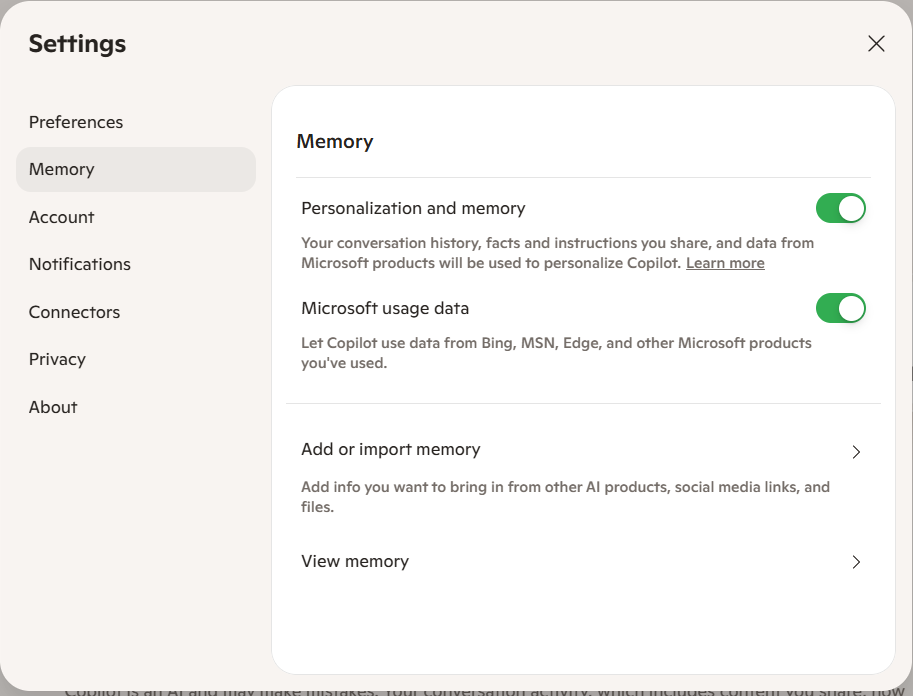
One caution on clearing everything. Microsoft’s Support page gives the steps as profile icon, then Memory, then Delete all Memory, but it says that page was written for the older version of the app. The Memory screen we captured doesn’t show a delete-all button in the crop. Open View memory to see what’s kept, and if you can’t find a delete option there, ask Copilot to forget the specific item instead.
Teach it the boring facts once. Check what it kept every few months. Delete anything you wouldn’t want summarised back to a stranger.
Look under the Copilot prompt box and there’s a button that reads Smart in our capture. Tap it and a menu opens with four conversation modes, each built for a different kind of question. A lot of regular users never open that menu, so every question gets whatever the button was already set to.
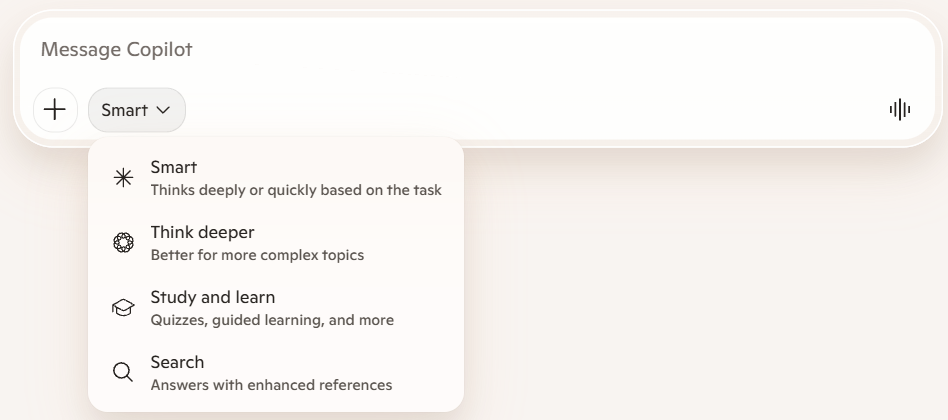
One honest wrinkle. Microsoft’s Support page on conversation modes lists five: Quick response, Think Deeper, Study and learn, Smart and Search.[5] The menu on screen today has four and no separate Quick response, and it describes Smart as thinking deeply or quickly based on the task. It’s reasonable to guess that Smart now covers what Quick response did, but Microsoft doesn’t say so, and the Support page may describe a different version of the app. Trust the menu on your own screen over any list, this one included.
Say you’re a first-time freelancer trying to understand what a tax term actually means before you file anything. Switching to Study and learn instead of just asking for the number outright gets you a mode built to walk through the concept rather than hand you an answer you can’t check.
| Mode | What it actually does | Reach for it when |
|---|---|---|
| Smart | Thinks deeply or quickly based on the task, so it decides how much reasoning the question needs | You’re not sure which mode fits and would rather it judge that |
| Think deeper | Better for more complex topics. Microsoft Support says it can take up to 10 seconds to give a more thoughtful answer | The question has real tradeoffs, not just a fact to retrieve |
| Study and learn | Quizzes, guided learning and more: explains a concept and guides you toward the answer instead of just handing it over | You want to understand something, not just get past it |
| Search | Answers with enhanced references, pulling current information from the web | The answer depends on something that changed this week |
The menu descriptions are Microsoft’s wording from the screen. You choose before you send, not after. The 10-second figure comes from Microsoft Support, Conversation modes in Microsoft Copilot.[5]
None of this is about picking the “best” mode. It’s about noticing that a question you’re about to weigh carefully deserves a different setting than one you already know the answer to.
Say you manage a small office and the printer just threw an error code you’ve never seen before. You could type the code into a search bar and wade through forum posts written for a different model. Or you could open Copilot Vision, point your phone’s camera at the panel, and just ask what it means and how to clear it.
Vision lets Copilot see what you’re looking at instead of you describing it. On mobile, that means your camera. On Windows and inside Edge, it means your screen or a specific app window, shared during a live voice session.[3]
Vision needs a Microsoft 365 Personal, Family or Premium subscription on a personal account. Work accounts get it a different way, through Copilot web and mobile signed in with a work identity.[3] It isn’t included with a basic account, and it’s worth knowing that before you promise it to anyone.
Vision usually rides on top of Voice Chat, which is worth knowing on its own. Tap the microphone icon in the compose box and Copilot plays a short greeting, then holds an actual spoken conversation: it listens, answers out loud, and keeps going, rather than transcribing what you say into a text box.[4] That’s a different feature from dictation, which just types what you say, and from read-aloud, which has Copilot read text back to you. Both of those are quieter and one-directional. Voice Chat talks back.
Reach for dictation when you want to type without your hands. Reach for Voice Chat when you want an actual back-and-forth with your hands off the phone entirely, the kind of thing that works well cooking, riding as a passenger, or walking between meetings.
Copilot’s presence in Microsoft Edge is easy to mistake for a bookmark to the same chat window you already have open elsewhere. It isn’t. The sidebar version already knows what tab you’re looking at.
Open the Copilot icon in the top right of Edge while a webpage, PDF or video is open, and you can ask about that specific page without copying a word of it into chat. Selecting “Create a Summary” gets you one outright, and because the sidebar also sees your other open tabs’ titles and URLs, it can suggest a comparison across them without you explaining what they are.[6]
Use the sidebar when the question is about the exact thing on your screen right now. Use the standalone app when the question has nothing to do with what’s open in the browser, or needs something the browser can’t see, like your calendar or last week’s Outlook thread.
The Copilot app on Windows has a wake word, off by default, that almost nobody turns on because nothing in the interface tells you it exists.
In Settings, under General, a toggle called “Listen for ‘Hey Copilot'” starts a hands-free voice conversation the moment you say the phrase, the same idea as “Hey Siri” or “Hey Google.”[7] Microsoft is specific about the limits: it only listens for those two words and nothing else, and no audio from either side of the conversation is stored.
One real annoyance, by Microsoft’s own note: background noise can occasionally keep a voice chat active longer than you meant it to.[7] Worth knowing before you switch it on in a loud room. The feature is documented for the Windows desktop app specifically; it isn’t available on Mac, mobile or the web version.
Turn it on if you’re usually at a desk with your hands full, taking notes on paper, holding a phone, eating lunch over the keyboard. Leave it off if your desk sits somewhere shared or noisy, since the toggle listens continuously for the wake phrase while it’s on, even before you say anything else.
Every feature in this list past the first one works by giving Copilot more of you: your files, your inbox, your screen, your voice, your camera, facts about your preferences it keeps between sessions. None of that is a reason to avoid it. It’s a reason to be deliberate about what gets turned on and why.
| What Copilot does | What you still own | How it gets checked |
|---|---|---|
| Reads files and messages you connect from OneDrive, Outlook, Google Drive or Gmail to answer a question | Deciding which accounts get connected at all, and disconnecting one the moment it stops earning its place | Review your connected accounts every quarter, the same way you’d review app permissions on your phone |
| Remembers preferences and facts you tell it, reuses them in later chats | Deciding what’s worth teaching it and what should stay unsaid | Ask “What do you know about me?” occasionally and delete anything you wouldn’t want summarised back to someone else |
| Sees your screen or camera feed during a Vision session | Ending the session the moment the thing on screen turns sensitive | Share the specific window, not your whole desktop, and close the session when you’re done |
None of this is unique to Copilot. It’s the same judgment call as giving any assistant, human or otherwise, access to your inbox.
That last point is worth sitting with for a second. Convenience and access move together here. The features that make the app genuinely useful (memory, connectors, Vision) are the same ones that widen what it can see. Treat the widening as a decision, not a default you never revisit.
Seven features, one register. Everything above, in the order you’d actually reach for it.
| Tip | What it does | When to use it | How to trigger it |
|---|---|---|---|
| Personal connectors | Grounds answers in your own OneDrive, Outlook, Google Drive or Gmail | Before a call or task where the answer lives in a file or inbox, not general knowledge | Settings, then Connectors, press Connect next to the ones you need |
| Memory | Keeps facts and preferences across chats | Anything you’d otherwise repeat every time you open a new chat | Say “Remember that…”, check with “What do you know about me?”, or open Settings, then Memory |
| Conversation modes | Switches how much reasoning a question gets | Leave Smart to judge most asks, pick Think deeper or Study and learn for harder ones, Search for current facts | Open the mode menu under the prompt box before you send |
| Copilot Vision | Lets Copilot see your screen or camera instead of you describing it | Anything easier to show than to type out | Start a voice chat, then “Share screen” (desktop/Edge) or allow camera (mobile) |
| Voice Chat | A real spoken back-and-forth, not dictation | Hands-off moments: cooking, riding as a passenger, walking | Tap the microphone icon in the compose box |
| Copilot in Edge | Answers about the exact tab, PDF or video open in your browser | The question is about what’s on screen right now | Select the Copilot icon in Edge’s top right corner |
| “Hey Copilot” wake word | Hands-free activation on Windows desktop | Desk-bound moments with your hands full | Settings, General, toggle “Listen for ‘Hey Copilot'” |
Pick one you’re not using yet and try it this week before adding a second.
Start with whichever one solves something you’re actually annoyed about today. If your Monday mornings involve reconstructing where a client conversation left off, connect your inbox first. If your team’s whole workflow already runs on scheduling the same Copilot prompt every week, that’s a different feature we’ve covered in full elsewhere. Scheduled Prompts in Microsoft 365 Copilot picks up exactly where this article leaves off.
One at a time is how the rest of this list actually gets used instead of just read.
No. They’re both made by Microsoft and both called Copilot, but they’re separate products. The standalone app, at copilot.microsoft.com or as a phone and desktop app, has its own memory, connectors, Vision and conversation modes. Microsoft 365 Copilot is the button inside Word, Excel, PowerPoint, Outlook and Teams, grounded in your organisation’s files through Microsoft Graph rather than a chat window of its own. If you’re deciding between Copilot and a different assistant entirely, we’ve compared Copilot and ChatGPT for work separately.
Some, not all. Connectors, memory, the conversation modes, and the Edge sidebar chat all work once you sign in with a Microsoft account. Copilot Vision needs a Microsoft 365 Personal, Family or Premium subscription on a personal account, and Think deeper mode gives subscribers priority only when the system is at capacity, not exclusive access. Check the specific feature before assuming it’s included in a basic account.
It’s the same judgment call as giving any assistant access to your inbox. You choose each connector individually and approve it on the other service’s own screen, and Microsoft’s Support page says Copilot only works with content your account already has permission to view. The answer is: reasonable to try, worth reviewing every few months, and not something to connect once and forget about.
Per Microsoft’s Support pages, turning off the “Personalization and memory” switch makes Copilot forget its memories of your conversations and stops the personalizing, and your conversation history stays. You can also ask Copilot to forget a specific item, or look under View memory on the Memory page to see what it holds.
Smart, which is what the button showed in our capture. It thinks deeply or quickly based on the task, so you don’t have to choose. Reach for Think deeper or Study and learn when the question has real tradeoffs or you’re trying to learn something rather than just get past it, and Search when you need current information. Microsoft’s Support page also lists a separate Quick response mode that the menu we captured doesn’t show.
Every feature described here was checked directly against Microsoft’s own Support documentation in September 2026, not a secondary summary. Two features were checked and deliberately left out. Copilot Groups is real and Microsoft announced it in October 2025, but no official Microsoft Support page with exact consumer-app mechanics, like group size or how a session starts, could be found as of this writing, so it isn’t included as a tip we can verify. “Real Talk” personality mode shipped around the same time and was removed by Microsoft in March 2026, so a tip built around it would already be wrong. Copilot Pages was also checked and is genuinely real, but it’s already covered elsewhere on this site in close to identical terms, so it was dropped here to avoid repeating the same ground. The screenshots here were captured live from the Copilot app in September 2026. Interfaces move often, so your screen may differ, and where Microsoft’s Support pages and the live interface disagreed, this article says so.
