
Most of what's interesting about Copilot never made it into the rollout email. Here's what's actually sitting there, and what it takes to reach it.

Twelve Copilot capabilities that are live now and rarely used, grouped by the assumption each one breaks: it only works in Microsoft apps, it only gives you text back, it only answers rather than acts, it only produces rather than checks, and it only works on your documents rather than on you. Every one was re-checked against Microsoft’s own current documentation on 25 August 2026, because several are rolling out in phases and one is Insider-only. Availability is labelled item by item, since a capability you cannot reach is not much use to you.
Halfway through a workshop last month, a facilities manager put her hand up and asked whether Copilot could do anything with a Zoom call, because her whole supplier network runs on Zoom and her employer runs on Microsoft. She’d assumed the answer was no. She’d assumed it for about eighteen months.
The answer is yes, with conditions. It transcribes Zoom, Webex and Google Meet, and it will transcribe a conversation happening in the room you’re standing in. That’s a documented Microsoft feature with a support page and an admin policy, not a rumour.
She hadn’t missed a memo. Nobody sends that memo. What lands in your inbox when Copilot gets switched on is a welcome message about summarising meetings and drafting emails, and then the tool sits there for a year being used as a slightly awkward thesaurus.
So this isn’t a list of better prompts. We’ve already written that one, and if what you want is the exact wording to get more out of things you already know Copilot does, the prompts guide is the companion piece to this one. This is the other half: capabilities and surfaces most people don’t know exist at all.
One thing worth setting up before we start. Almost everything below is gated by something, and the gate is rarely the thing people assume. The $30 add-on gets the blame for most of it. More often the gate is an account type, a platform, a phased rollout, or a licence label nobody has ever looked at. So every item here says what it needs, and the last section shows you how to check what you’ve got in about three seconds.
A feature you can’t reach isn’t a feature. Check the gate before you judge the tool.
A naming note, and then I’ll stop. Microsoft’s documentation now says Microsoft Copilot and Microsoft Copilot Chat, dropping the 365, and its own pages describe this as a transition with some licences and experiences still carrying the older names.[15] The commercial pages still say Microsoft 365 Copilot. I’m using the shorter names throughout and I won’t make a thing of it.
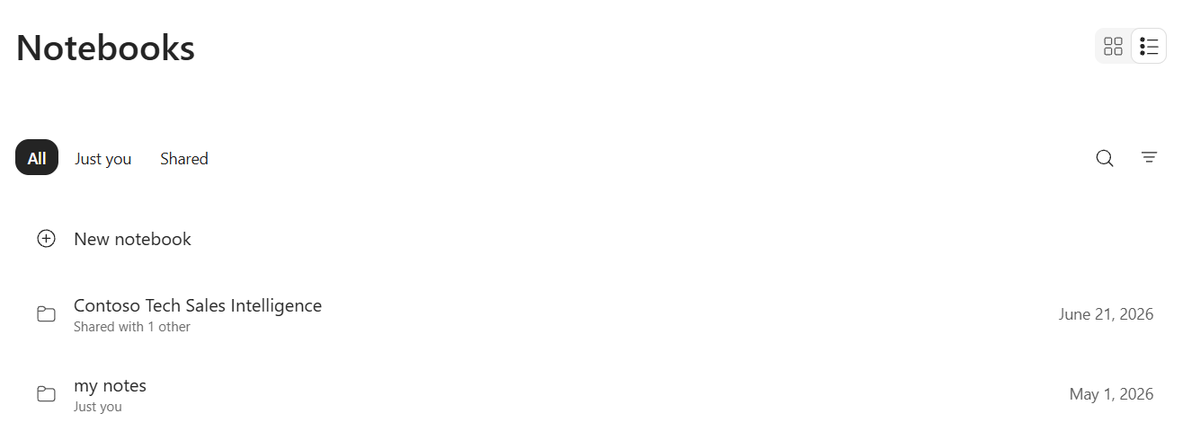
1. Capture, in Copilot Notebooks. This is the one that gets the biggest reaction, so it goes first.
Capture detects a third-party meeting and transcribes it in real time. Microsoft’s own page names Zoom, Webex and Google Meet directly. On iPhone and iPad it does something else as well: you can photograph a whiteboard, type notes, and have the conversation transcribed in the same session, and Copilot then assembles a structured page with the transcript, your photos, your notes and its own read of the key points.[1]
The part I find genuinely useful is the whiteboard. Everyone photographs whiteboards. Almost nobody ever looks at the photo again, because a photo of a whiteboard is a picture of some handwriting with no context attached. Sitting inside a page next to what was being said while it was drawn, it becomes something you might actually reopen.
Now the conditions, and they’re real. It’s rolling out in phases, iPhone and iPad first. The Windows version, the one that handles offline and third-party meetings from the OneNote system tray, is available only to Office Insiders Beta customers right now. Copilot Notebooks needs a Microsoft Copilot licence plus SharePoint or OneDrive storage, and while Notebooks itself reaches Microsoft 365 Personal, Family and Premium subscribers, Capture specifically is commercial only, for work or school accounts.[1]
You’re about to be able to transcribe a conversation with a person standing in front of you. Microsoft puts the responsibility for that squarely on you, in a sentence I’d rather quote than paraphrase: “You’re responsible for obtaining consent from all participants before using Capture to transcribe a meeting.”
That’s not a legal disclaimer you can skim past. In-person recording rules vary by country and by state, your employer probably has its own policy, and the social cost of getting this wrong with a supplier or a colleague is higher than anything the transcript saves you. So here’s the sentence, written out, because the reason people skip consent is almost never that they object to it. It’s that they don’t have the words ready and the moment passes.
| Situation | What to say |
|---|---|
| In the room | “Before we start, I’d like to have this transcribed so I’m not writing while you’re talking. It goes into my own notes, not anywhere shared. Is everyone happy with that?” Then wait for an actual answer. |
| On a Zoom or Meet call | “I’m going to run a transcription on my side so I can send you accurate actions afterwards. Say if you’d rather I didn’t.” Put the same line in the calendar invite so nobody is ambushed. |
| If one person hesitates | Don’t negotiate. Turn it off and take notes. A transcript is worth less than the relationship, and someone hesitating in front of colleagues has already paid a cost. |
| Afterwards | Say where it went and what you’ll do with it. “Transcript’s in my notebook, I’ll send the actions by five, I’m not sharing the raw text.” |
Consent wording for Capture sessions. Microsoft places the obligation to obtain consent on the user, so the words are your problem, not the product’s. Check your own jurisdiction and employer policy as well.
One reassurance worth passing on, because people ask. Microsoft states that audio processed during a Capture session is deleted immediately after transcription and therefore can’t be used for anything else, and says the same about the data used to separate speakers. That’s a claim about the audio, not about the transcript, which lives on in your notebook like any other file.
Three capabilities here, and what links them is that the output isn’t text. That sounds like a novelty. It stops being a novelty the moment you notice which of your colleagues never read the thing you sent.
2. Video recap. Copilot will take a meeting recording and cut you a narrated highlights video. Not a summary of the video. A video. It selects short snippets, typically 20 to 40 seconds, and generates AI narration and captions over them.[2] The prompt is close to trivial: Microsoft’s own example is Recap /meeting_EXP, so it’s the word Recap and then the meeting.
Conditions: it needs a Microsoft Copilot subscription, the meeting has to have been recorded and typically run at least ten minutes, and English only for now. Two limits worth knowing before you get excited. Video recaps aren’t editable, and as things stand they can’t be shared either. So this is a thing you watch, not a thing you send.
3. Audio overviews. Point Copilot in OneDrive at a Word document, a PDF or a Teams meeting recording and ask for an audio overview. Summary Style gives you one AI host walking through the main points. Podcast Style gives you two AI hosts talking it over between them, which is stranger and, for a dense document, oddly more useful.[3] Save it and you get an mp3 in your Recordings folder.
I’d flag one thing the brief I was working from got wrong, because it’s the kind of error that costs someone an afternoon. Microsoft’s OneDrive page for this states no Copilot licence requirement at all. What it asks for is a OneDrive for work or school account. The real limits are elsewhere: English files only, your file needs at least 200 words, generation may be subject to daily caps, and encryption blocks you from saving the audio rather than from generating it.
4. Interpreter in Teams. Real-time speech-to-speech interpretation, in meetings and calls, across ten languages. And it can speak in a simulation of your own voice, with Microsoft noting that voice samples and biometric data are never stored.[4]
The number almost nobody knows is the allowance. Verbatim from Microsoft: “20 hours of interpretation are included per person per month with a Microsoft Copilot license.”[4] Twenty hours is a lot if you spend it on short calls and almost nothing if you spend it on set-piece meetings, which is the whole argument for using it on the fifteen-minute supplier conversation rather than the quarterly review.
Where it doesn’t work is specific and worth reading before you plan around it. Not in ad-hoc meetings, not in Teams Rooms with personal devices, not in town halls, not in webinars, not in Teams Free. External participants need verified Microsoft 365 accounts with valid Copilot licences, so anonymous guests are out.
| You want | Use | Because | Don’t, if |
|---|---|---|---|
| To catch up on a long meeting you missed | Video recap | You see faces, slides and tone, which is what a transcript strips out | You need to forward it to anyone. Recaps can’t be shared or edited yet |
| To get through a dense report while doing something else | Audio overview, Podcast Style | Two voices arguing over the content surfaces the tensions a summary flattens | The file is under 200 words, or isn’t English |
| A quick, faithful walkthrough of one document | Audio overview, Summary Style | One host, no editorialising, closer to the source | You need to quote it. Go back to the document for that |
| To run a short call in a language you don’t share | Interpreter | Speech to speech, in your own voice if you want it | It’s a town hall, webinar, ad-hoc meeting or Teams Free call. Not supported |
A decision rule for the three non-text output forms, built from the limits stated on each Microsoft support page (checked 25 August 2026).
Two capabilities that break a different assumption. Copilot mostly answers you. These two do something instead.
5. The Planner Agent. In Planner you can assign a task to the agent the same way you’d assign it to a person, and it executes the task and drops its output into a Loop component inside the task details.[5] Status reports come out as Loop components too, which means they stay live and editable across Microsoft 365 rather than arriving as a dead paragraph in an email.
What makes it worth trying is where it sits. The work is already tracked in the plan, with an owner column, and now one of the owners isn’t a person. That’s a much smaller conceptual leap than opening a separate agent-building tool, which is the route most people never take. If you do want that route, we’ve covered building a custom agent in Copilot separately.
It’s generally available, in both basic and premium plans, and users need a Microsoft Copilot licence.[5] Don’t confuse it with Copilot in Planner, which is a different feature on a different page and still carries a preview label. Plan creation, specifically, is the premium-only bit.
Microsoft’s own FAQ contains my favourite sentence in any product documentation this year, on what happens when you over-ask: “if you assign it a task to build a house, it will not be able to successfully build a house. However, in these cases, it will output a set of instructions for how you can go about completing the task, yourself.” That’s a fair description of the failure mode of every agent I’ve used.
6. Building a small working app inside a Copilot Page. Include the words app, interactive or UI in your prompt and Copilot generates runnable code inside the page. There’s a Preview toggle so you can use the thing, and you keep chatting to refine it.[6]
This is the one-off internal tool you’d normally have to ask IT for and then not get. A leave-planner grid. A quote calculator for a pricing model only your team uses. A checklist that scores itself. Not production software, and I wouldn’t pretend otherwise, but the gap between “I need a small thing” and “I have a small thing” is usually months of nobody’s priority.
The licensing detail here is the interesting one, and it needs saying carefully. Microsoft’s wording: if you have a work or school account, “Copilot Pages is available to those who have SharePoint or OneDrive storage, including ones without a Microsoft Copilot license.” So there’s no extra licence needed on top of the Microsoft 365 subscription your organisation already pays for. That is not the same thing as free, and I’d rather you took the accurate version into a conversation with your finance director than the punchy one.
| Part of the prompt | Written out |
|---|---|
| The trigger word | “Build me an interactive app in this page.” |
| The job, in one sentence | “It scores a supplier against our five criteria and tells me whether to shortlist them.” |
| The inputs, named | “Five sliders, 1 to 5: price, lead time, quality history, responsiveness, financial stability.” |
| The logic, explicit | “Weight quality history and lead time double. Show the total out of 35.” |
| The output, decided | “Under 20 say Decline. 20 to 26 say Second conversation. Over 26 say Shortlist. Show the two lowest-scoring criteria as the reason.” |
| What to leave out | Anything that needs to save data, connect to another system, or be used by someone who isn’t in the page with you. Rebuild it as a real tool at that point. |
A worked example for the lightweight app builder in Copilot Pages. The pattern is trigger word, job, inputs, logic, output. Swap the criteria for your own and the shape holds.
Here’s where I changed my mind about Copilot. For a long time I used it the way most people do, at the start of a job, to get past a blank page. The uses that have actually stuck are the opposite: at the end of a job, on something already finished, asking what’s wrong with it.
Producing is the thing AI is loudest about and the thing you’re most likely to have to rewrite. Checking is quiet, unglamorous, and the failure mode is much better. A bad suggestion costs you five seconds of reading. A missed error in a spreadsheet you’ve already emailed costs considerably more.
Point it at finished work, not a blank page. The failure mode is cheaper.
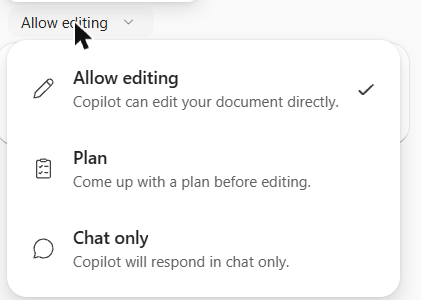
7. Excel’s Chat only mode, chosen on purpose. Copilot in Excel has three modes: edit, plan, and chat. Edit is the default.[9] Chat only, in Microsoft’s words, “can analyze your workbook data and provide insights without making changes to your workbook.”
Deliberately picking the mode that can’t touch anything is the move. It turns Copilot into a read-only second pair of eyes on a file you’re about to send, with zero risk that it helpfully restructures something on the way past.
The errors worth pointing it at are the quiet ones:
Sharyn Baines, who runs Excel at Work in New Zealand and has spent twenty years teaching people this software, describes it exactly that way: “You can think of it as a calm, second set of eyes that helps you check your work before you share it with a manager, a client, or your team.”[10] Her prompt is plain, and it stays in chat mode: Please check my worksheet for errors and let me know what needs fixing. She notes it catches the thing that costs people most, which is a number typed over a formula, along with inconsistencies between formulas that should match.
Jeff Lenning at Excel University runs a harder version with editing switched on, prompting audit this worksheet for formula errors and fix them, and reports it catching hard-coded values, inconsistent formulas, incorrect formulas, and “formulas that didn’t include everything they should.”[11] That version needs a dedicated Microsoft Copilot licence, where chat mode does not.
| Read-only check | Check and fix | |
|---|---|---|
| Mode | Chat only | Allow editing |
| Prompt | “Please check my worksheet for errors and let me know what needs fixing.” | “Audit this worksheet for formula errors and fix them.” |
| Licence | Copilot in Excel, available on the Basic label | Needs a dedicated Microsoft Copilot licence |
| Use it when | The file is going to someone who matters and you want nothing altered | It’s your own working file and you’re happy to review a diff |
| Then do this | Fix by hand. You’ll remember the mistake, which is the point | Check every change it made before you save. It is not always right |
Two documented approaches to the same job, from Sharyn Baines (Excel at Work) and Jeff Lenning (Excel University). Chat only and Allow editing are Microsoft’s own mode names. On iPhone and Android, chat is the only mode available.
8. Prepare for questions, in PowerPoint. A Copilot skill that analyses your presentation to identify potential weak points and anticipate the questions an audience will ask.[17] Not to rewrite your slides. To argue with them.
I’ll be careful here, because this one is widely written about and thinly documented. What I could confirm is Microsoft’s own Message Center wording describing the skill and its purpose, and that it reached general availability worldwide in late May 2026, enabled by default for eligible users, with admins unable to control individual skills.[17] Various specific behaviours get repeated online, including that it names the slide numbers where your argument is thin and rates objections by severity. I couldn’t verify any of those on a Microsoft page, so I’m not going to tell you they happen. Open it and find out, and treat anything more precise than “it anticipates questions” as unconfirmed.
Worth knowing: some Copilot skills depend on the Anthropic model, and where an admin has disabled that model those skills don’t appear. If a colleague has it and you don’t, that’s one of the reasons.
Two uses where the subject isn’t a file. It’s you.
9. Asking Copilot to roast your week. Claire Louise Bristow, who describes herself as a solution architect and functional consultant in the Dynamics and Power Platform world, posted a prompt that has stuck with me: Copilot, roast my week using Teams, Outlook and files. Be cheeky but keep it HR-safe. You need Copilot Chat with the Work option selected so it can search across Teams, Outlook and your files.[12]
Her framing is Friday fun, and I want to be straight that the useful-tool reading is mine, not hers. She tagged the post “not for work” and her own summary is that you get something “part performance review, part stand-up comedy.” Her caveat travels with the prompt: know your audience, check it suits your workplace, and make sure you’re not accidentally surfacing sensitive information in front of anyone.
Why I think it earns a place anyway. A neutral summary of your week tells you what you did. It has no opinion, so it flattens everything into a list and you learn nothing. The roast framing forces the model to find what’s odd about your behaviour, and odd is where the useful information lives. The meeting you accepted four times and moved four times. The document you opened on eleven separate days without editing. Comedy needs a pattern, so asking for comedy is a way of asking for patterns without having to know which pattern you’re looking for.
10. Running Copilot against yourself, to see what colleagues can already see. This is the one I’d do first if you only do one thing from this article.
Microsoft is direct about how access works: “Copilot only shows the data that users have permission to access.”[13] Read as a reassurance, that’s where most people stop. Read as an instruction, it’s a five-minute exercise almost nobody has run. Because the flip side of Copilot honouring existing permissions is that Copilot will cheerfully surface anything your permissions were sloppy about, to anyone who has them.
Run it on yourself before you point it at anyone else.
Copilot draws on Microsoft Graph to bring in a person’s emails, chats, documents and meetings, and it uses mailbox content including calendar events. So the question worth asking isn’t whether it can see things. It’s which things, and whether you’d have chosen that.
| Ask Copilot | What you’re looking for | If the answer is uncomfortable |
|---|---|---|
| “What do you know about me from my files and email?” | The summary a colleague would get. Read it as a stranger would | Nothing to fix here yet. This is the baseline for the next four |
| “Summarise my salary, performance or HR-related documents.” | Whether anything personnel-related is sitting in a shared location | Move it to a private folder today. Don’t just restrict it, move it |
| “What projects am I working on that are behind schedule?” | Whether your candid status notes are readable beyond your team | Check the sharing on the document it drew from, not on the folder |
| “What’s on my calendar next month?” | Meeting titles are usually more revealing than the meetings | Rename the sensitive ones. “Catch-up” beats a person’s name plus a topic |
| “Show me the files I’ve shared most widely.” | The link you made “anyone in the organisation” three years ago | Revoke it. Then check whether the pattern repeats across a folder |
A self-audit built on Microsoft’s documented behaviour: Copilot surfaces only what the signed-in user can already access, grounded in Graph data including mail, files, meetings and calendar. Run it on yourself, monthly if you share a lot.
The reason to do this rather than read about it: permissions decay quietly. Nobody sets out to leave a compensation spreadsheet in a shared library. It happens because someone needed it once in 2023 and the link outlived the reason.
Not headline capabilities. Small enough that nobody writes about them, and each one solves a complaint I hear constantly.
11. Follow a meeting, in Outlook. A fourth response option beside Accept, Decline and Tentative. Your calendar shows the time as free, and you still get the chat, the recording and the transcript. The organiser also gets a reminder to record the meeting and take collaborative notes.[7]
That’s the answer to “I can’t come but I need the outcome,” which is otherwise handled by accepting a meeting you won’t attend and blocking two hours of your week for nothing.
Two traps. It’s in limited release, and only in new Outlook for Windows and Outlook on the web. And the one that will actually bite you, in Microsoft’s own words: if the organiser is on classic Outlook for Windows, Outlook for Mac or Outlook Mobile, “your meeting response will appear as Tentative.” So half your organisation may think you’re a maybe. Also worth knowing, the Follow option only shows up when a meeting has two or more participants and the organiser has requested responses.
12. Name-mention markers on a Teams recording. Open the recording of a meeting you missed and the timeline carries an @ icon at every point somebody said your name. Select it and you jump straight there. There are join and leave markers too, showing the exact window you were absent for.[8]
Microsoft’s line on this deserves quoting because it’s the bit people worry about: “Only you can see your own name mention markers.”[8] The same applies to your join and leave markers.
A ninety-minute recording becomes two minutes of watching. It needs the meeting to have been recorded or transcribed, and the name in the transcript has to match your display name, which is why it silently fails for people who go by a shortened first name. On licensing, this is the widely misunderstood one: intelligent recap comes with Teams Premium or with a Microsoft Copilot licence. Either one. You don’t need both, and plenty of people have been told they do.
The first is the licence label, which resolves most “why can’t I see it” arguments in about three seconds. Copilot’s own documentation refers to labels like M365 Copilot (Basic) and M365 Copilot (Premium), and which one you carry determines whether you get chat-only access in an app or the full editing capability.[9] Basic is what comes with an eligible Microsoft 365 subscription. Microsoft’s wording for that, and I’d use theirs rather than mine, is that Copilot Chat “is available at no additional cost for all Microsoft Entra account users with an eligible Microsoft 365 subscription.”[16] Notice Microsoft asks the question “Is Copilot Chat free?” on its own page and then answers it without using the word.
The second is the limit that has nothing to do with money and blocks entire teams. Verbatim from Microsoft: “Microsoft Copilot is only supported on primary mailboxes that are hosted on Exchange Online. It isn’t available on a user’s archive mailbox, group mailboxes, or shared and delegate mailboxes that they have access to.”[14]
Read that again if you run a shared inbox. Every support@, every info@, every matter-specific or department mailbox: Copilot does nothing there, and no amount of licence spend changes it. If your team’s work lives in a shared mailbox, that’s the single most important sentence in this article, and it’s the reason some rollouts land with a thud that has nothing to do with training.
The five gates, in the order worth checking. Four of the five you can confirm yourself in under a minute, without raising a ticket. Built from the licence, requirements and feature pages cited throughout this article.
Twelve things is too many to act on, so here they all are in one place, and then a single recommendation.
| # | What it does | Where | What it needs | Stage | The gotcha |
|---|---|---|---|---|---|
| 1 | Transcribes Zoom, Webex, Google Meet and in-person talk; adds whiteboard photos | Capture, in Copilot Notebooks | Copilot licence plus SharePoint or OneDrive; work or school account only | Rolling out in phases; Windows is Insiders Beta | You must obtain consent from everyone first |
| 2 | Cuts a narrated highlights video from a meeting recording | Copilot app and Clipchamp web player | Microsoft Copilot subscription | Live; mobile still to come | Can’t be edited or shared. English only |
| 3 | Reads a document to you as a single host or a two-host podcast | Copilot in OneDrive | OneDrive for work or school. No Copilot licence stated | Live | 200-word minimum, English only, encrypted files can’t be saved |
| 4 | Real-time speech-to-speech interpretation, optionally in your own voice | Teams meetings and calls | Microsoft Copilot licence; 20 hours per person per month | Live, ten languages | Not in town halls, webinars, ad-hoc meetings or Teams Free |
| 5 | Completes a task you assign it, like a team member | Planner Agent | Microsoft Copilot licence; basic and premium plans | Generally available | Not the same as Copilot in Planner, which is still preview |
| 6 | Builds a small runnable app inside a page | Copilot Pages | SharePoint or OneDrive storage; no Copilot licence needed | Live | Nothing persists or connects. Rebuild properly if it sticks |
| 7 | Read-only formula audit before you send a file | Copilot in Excel, Chat only mode | Basic label is enough for chat; editing needs the full licence | Live on Windows, Mac, Web | Mobile is chat-only. Verify anything it fixes in edit mode |
| 8 | Argues with your deck and anticipates audience questions | Prepare for questions, in PowerPoint | Copilot in PowerPoint | Generally available since late May 2026 | Disappears if your admin has disabled the Anthropic model |
| 9 | Roasts your week to surface odd patterns in your own behaviour | Copilot Chat, Work scope | Work grounding, so a paid licence | Live | Know your audience. Don’t run it on a shared screen |
| 10 | Shows you what colleagues can already see about you | Copilot Chat, Work scope | Work grounding | Live | Only reveals what’s genuinely indexed for you. Not a permissions audit tool |
| 11 | Follow a meeting: keep the chat and recording, keep your calendar free | Outlook | No Copilot licence stated | Limited release | Shows as Tentative to organisers on classic Outlook, Mac or mobile |
| 12 | Jumps you to every point your name was said in a recording | Teams recap timeline | Teams Premium or a Microsoft Copilot licence | Live | Fails silently if the transcript name doesn’t match your display name |
All twelve capabilities, each checked against Microsoft’s own current documentation or the named practitioner’s own post on 25 August 2026. Stage and licence details move, so re-check anything you’re about to build a case on.
Now the recommendation, and it’s deliberately singular.
Start with number 10, the exposure check. It costs five minutes, it needs nothing beyond work grounding you almost certainly already have, and it’s the only one on the list where the result might change what you do this afternoon rather than next quarter. It also has the useful property of teaching you what Copilot can and can’t reach in your particular tenant, which makes every other item on this list easier to judge.
If that one’s not available to you, the answer is upstream. Work down the five gates above in order and stop at the first one that explains it. Two of them account for most of the confusion: the licence label, which almost nobody has ever looked at, and the shared mailbox, which no amount of spending will fix.
Then pick a second one based on what annoys you most:
One at a time, for two weeks each. Twelve new habits is zero new habits, and the reason most of these go unused isn’t that they’re hidden. It’s that the week they’d have helped, nobody had time to find out.
The capabilities that surprise people are mostly the ones that break an assumption about where Copilot works or what it hands back. It transcribes Zoom, Webex and Google Meet calls through Capture in Copilot Notebooks, and can transcribe an in-person conversation alongside whiteboard photos. It edits a narrated highlights video from a meeting recording. It reads a document to you as a two-host podcast and saves it as an mp3. It completes a task you assign it in Planner and returns the output in a live Loop component. It builds a small runnable app inside a Copilot Page. And it will audit a spreadsheet in a read-only mode that cannot change anything. Availability varies a lot by licence, account type and platform, so check each one before planning around it.
Yes. The Capture feature in Copilot Notebooks automatically detects third-party meetings, and Microsoft names Zoom, Webex and Google Meet specifically, transcribing them in real time. It’s rolling out in phases, reaching OneNote for iPhone and iPad first, and the Windows version that handles third-party and offline meetings is currently limited to Office Insiders Beta customers. Capture is available only to commercial users with work or school accounts, and needs a Microsoft Copilot licence plus SharePoint or OneDrive storage. Microsoft states plainly that you are responsible for obtaining consent from all participants before transcribing a meeting, which matters more for in-person capture than anything else on this list.
The honest framing is that almost nothing here is free, because Copilot Chat itself requires an eligible Microsoft 365 subscription your organisation is already paying for. Microsoft’s own wording is that Copilot Chat is available at no additional cost for Entra account users with an eligible subscription. Within that, Copilot Pages, including the lightweight app builder, is documented as available to work or school users with SharePoint or OneDrive storage even without a Microsoft Copilot licence. Chat mode in Excel works on the Basic label, while editing needs the dedicated licence. Video recap, Interpreter, the Planner Agent and Capture all require a Copilot subscription or licence.
Work down five gates in order. First, account type: several features including Capture are commercial only, for work or school accounts. Second, the licence label under your name, since Basic and Premium give you different things inside the same app. Third, platform: Follow a meeting exists only in new Outlook for Windows and Outlook on the web, and Capture on Windows is Insiders-only. Fourth, rollout stage, because limited release and phased rollouts genuinely mean some colleagues get things months earlier. Fifth, mailbox type, which is the one nobody checks. Copilot is only supported on primary Exchange Online mailboxes, so shared, group and archive mailboxes get nothing regardless of spend.
That depends on where you are and who you work for, and it is not a question the product answers for you. Microsoft’s position is explicit: you’re responsible for obtaining consent from all participants before using Capture to transcribe a meeting. Recording and transcription law varies by country and by state, some requiring all-party consent and some only one party, and your employer’s policy may be stricter than the law either way. The practical advice is to ask out loud before you start, put a line in the calendar invite so remote participants aren’t surprised, and stop immediately if anyone hesitates. Microsoft does state that the audio itself is deleted immediately after transcription, though the transcript persists like any other file.
Every Microsoft capability described here was re-checked against Microsoft’s own current support and Learn documentation on 25 August 2026 rather than against secondary summaries, and each item is labelled with the availability stage stated on that page. Several claims from the original research brief were corrected or dropped in the process. The audio overviews feature was described as requiring a Copilot licence; Microsoft’s OneDrive page states no licence requirement, only a work or school account. Interpreter was described as working in 1:1 calls; Microsoft’s page says meetings and calls and never uses that phrase. The Excel audit prompt was attributed to chat-only mode; it belongs to Jeff Lenning’s edit-mode demonstration, while Sharyn Baines’ chat-only prompt is a different sentence, so both are given separately. Four specific behaviours attributed to PowerPoint’s Prepare for questions skill, and a quotation about it, could not be confirmed on any page and are not stated here. The Prepare for questions material rests on Microsoft’s Message Center notice rather than a public support page, which is a weaker source than the rest and is flagged as such. Claire Louise Bristow’s post frames the roast prompt as Friday entertainment; the reading of it as a behavioural audit is ours, not hers.
