
Not a tips list and not a menu tour. The handful of choices behind why the same prompt gets one person a sharp answer and another a generic one.

Microsoft 365 Copilot’s answers depend on choices made before you type: whether the Work IQ button and web search are on, what your custom instructions and saved memories say, and which content your permissions, site settings and connectors put within reach. This guide treats each as a decision rather than a menu path: what it changes, who turns it, which way to lean depending on your role, and a six-question check-up to score your own setup. Everything was checked against Microsoft’s own pages on 29 September 2026, and anything that couldn’t be verified is left out and named at the end.
Say you’re a marketing manager, and the person at the next desk types the same request you do: “Where does the Q4 launch stand?” Hers comes back with two named blockers, a date from Tuesday’s thread and a link to the plan. Yours comes back with a tidy, generic launch checklist. Neither of you did anything wrong with the prompt.
The difference was mostly settled before anyone typed. Three dials shape a Microsoft 365 Copilot answer: where it’s allowed to look, what it keeps about you, and what it can see in the first place. Plenty of people haven’t opened any of them, which is how two colleagues with the same subscription and the same words end up with what feels like two different products.
This piece covers what each dial decides, who turns it, and which way to lean for your role. It isn’t a click-by-click settings tour, because menu names move often. Exact paths are in Microsoft’s pages, linked at the bottom.
| Dial | The decision it changes | Who turns it |
|---|---|---|
| Look: Work IQ button | Whether Copilot can use your email, files, chats and meetings in this chat | You, chat by chat |
| Look: web search | Whether Copilot can bring in current public web content | You, unless your admin has turned it off |
| Keep: custom instructions | Standing preferences for how Copilot responds | You |
| Keep: memory and chat history | What Copilot saves and infers between chats | You, or your admin for the whole tenant |
| See: permissions and site settings | Which organisation content Copilot can find at all | Site owners and IT admins |
| See: connectors | Whether Salesforce, Confluence or Jira content is reachable | Your admin |
Half of these dials belong to someone else. Checked against Microsoft’s own pages on 29 September 2026.
Two switches decide where Copilot looks. The first is the Work IQ button at the top left of the chat screen, which Microsoft says has replaced the separate Work and Web tabs. It’s a single on/off control for whether Copilot can reference your Microsoft 365 work data. With it on, Copilot can use your emails, files, chats and meetings. With it off, it still answers, but from what you attach, the web and your profile preferences.[1]


So when an answer comes back generic, there are three usual suspects:
Here’s how I’d set the toggle, and it’s my own rule of thumb rather than Microsoft’s guidance. Leave Work IQ on when the answer lives in your own work: a project status, a client thread, what you promised last week. Turn it off when you want an answer that doesn’t lean on your inbox, like a finance analyst asking a general accounting question, a contracts manager drafting template language, or anyone about to share their screen in a meeting.
The second switch is web search. When it’s on, Copilot can send a generated search query to Bing to ground an answer in current public information. Microsoft says that query isn’t your whole prompt unless the prompt is very short, doesn’t include entire files, and goes out with user and tenant identifiers removed. If your admin has turned the Allow web search in Copilot policy off, the toggle is dimmed and you can’t switch it on. Switch it off yourself and answers lose that current grounding, so a question about this month’s market news gets weaker.[3]
| The question you’re asking | Work IQ | Web search | Why |
|---|---|---|---|
| “Where does this project stand?” | On | Off | The answer is in your threads and files. Web results add noise. |
| “What changed in this market this month?” | Off | On | The answer lives outside your organisation and moves weekly. |
| “Explain this clause before I read the contract.” | Off | On | General knowledge. Your inbox shouldn’t colour it. |
| “Rework this draft for a new audience.” | Off | Off | Everything it needs is in what you pasted, so fewer sources means fewer surprises. |
The toggle behaviour is Microsoft’s. The pairings are our judgment, so adjust them to your own work.
Decide where Copilot may look before you decide what to ask it.
Microsoft documents three personalization controls under Settings > Personalization: custom instructions, saved memories and chat history. Custom instructions are the only one you write yourself. Saved memories are facts Copilot keeps from your conversations, and chat history lets it infer details across them. Memory is on by default, and no action is needed to switch it on.[4]
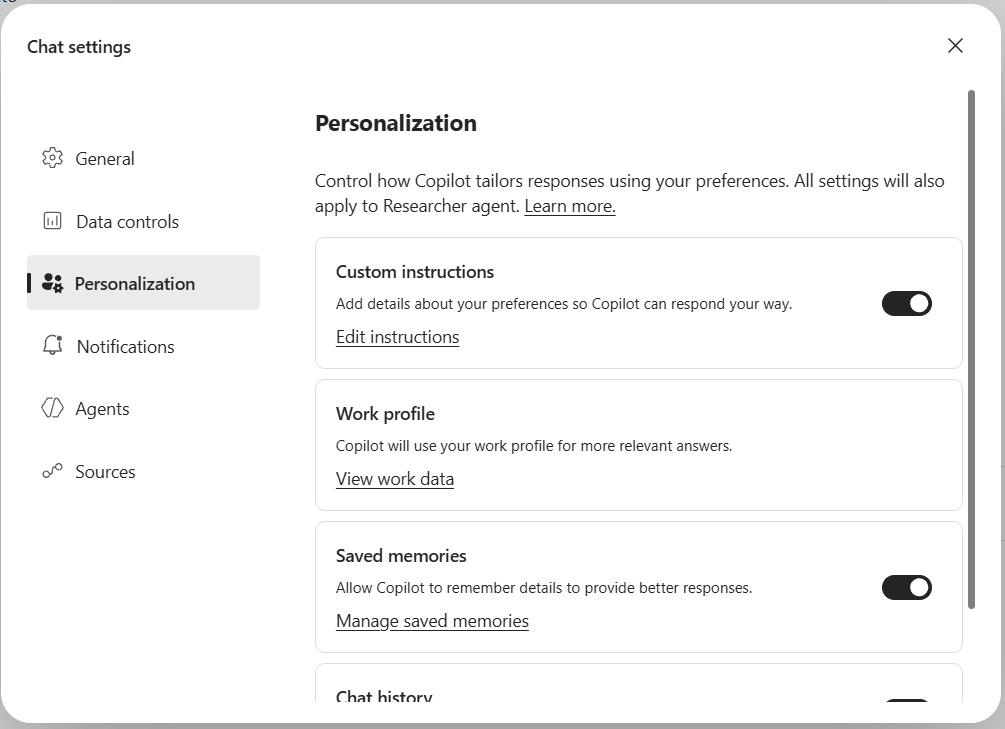
Custom instructions and Saved memories each have a toggle and a link to edit or manage them. A Work profile entry with a View work data link sits between them, which Microsoft’s page doesn’t cover, so I won’t guess what it does. There’s no tone control.
If you went looking for a tone setting, there isn’t a separate one. Custom instructions are a single box where you say how you want Copilot to respond, and Microsoft’s own example is a formatting preference: bullet points for key details when summarising a meeting.[5] Tone becomes a writing job, and the quality of those few sentences is the lever.
| Paste this, then edit it to fit your work |
|---|
| I’m a marketing manager at a B2B software company. I write for senior buyers who skim, so use plain language and short paragraphs. When I ask for a summary, lead with the decision or next step, then the detail. Put dates and owners in a table. Name the source when you use my emails or files. If you can’t find a number, say so instead of estimating. If my request is ambiguous, ask one question before you write. |
Illustrative wording, not Microsoft’s.
Read the box as a shape: who you write for, what a good answer looks like, how sources get named, and when to ask before guessing. It’s a preference, not a guarantee, so keep checking the output against the rules you set.
Write down the preferences you’d repeat every day, and treat anything Copilot infers as something to review, not something you set.
Then there’s the part that runs without you writing anything. The saved memories live in your Exchange mailbox in a hidden folder, under the same security and compliance policies as other mailbox data. Your admin can’t restrict what type of information gets added, and Purview retention policies don’t apply to it, though admins can search it through eDiscovery or Content Search.[4]
Say you’re an independent consultant with three clients in unrelated industries. One shared memory is convenient until Tuesday’s draft for the retailer borrows phrasing you taught it for the bank. The pages I read don’t describe separating memory by client, so I’d treat it as one shared pool: keep only preferences that hold for all your work in custom instructions, and use temporary chat for anything that mustn’t mix.
To see what it’s holding, ask “What do you know about me?” Deleting takes two steps: delete the saved memories, then turn off the chat history toggle. Turn it back on within 30 days and Copilot adds the deleted memories back. Temporary chat lets you talk without using or updating memory at all.[6]
Microsoft’s position is that Copilot only accesses data users are authorised to access. The same page adds that overshared or poorly governed content can affect Copilot results and increase risk.[7] Put together, permissions become a Copilot setting, even though nobody labels them that way.
Say you’re an HR business partner who owns a team site. Years ago a folder of draft restructuring notes was shared with everyone in the company for a one-day review, and the link setting was never changed. So far nobody has stumbled on it, because nobody browses to it. Copilot doesn’t browse, it searches with whatever access the person asking already has, so the sharing that made that folder findable is the sharing Copilot honours.
Honestly, this is the dial I’d look at first if I owned a site. We laid out a five-minute exposure check for spotting this from the user side in Wait, Copilot Can Do That?.
When the fix can’t happen today, admins have one lever built for the gap. Restricted Content Discovery limits discovery of content from specific SharePoint sites in organisation-wide search and Copilot responses while a review takes place. It doesn’t change permissions, so people who already have access keep it. It needs SharePoint Advanced Management and a Copilot licence, applies to SharePoint sites and not OneDrive, and on sites above 500,000 items an update can take more than a week to take effect.[8]
It’s a holding pattern: it buys time for a review, and the review still has to end with someone correcting the sharing.
If Copilot surfaces something it shouldn’t, fix the sharing, not the prompt.
Some answers sit in Salesforce, Confluence or Jira, and people fill the gap by copying and pasting into the chat. Copilot connectors are the built-in alternative. Microsoft lists more than 100 prebuilt ones. Each item carries an access control list, so Copilot only shows people what they can already open in the source system, and an admin sets them up in the Microsoft 365 admin center.[9] For you, that makes it a request rather than a switch.
My rule for when to ask: request a connector when you repeat the same copy-and-paste from one system every week. Say you’re a sales operations analyst pasting opportunity notes into Copilot every Monday. A request an admin can act on looks like this:
| Field | Sales operations example |
|---|---|
| What I do today | Each Monday I copy opportunity notes for six accounts from Salesforce into a Copilot chat. |
| What I’d ask | “Which of my accounts have no logged activity in 14 days?” |
| Who else needs it | The four account executives on my team. |
| What it must not do | Change any record, or show anyone an account they can’t already open in Salesforce. |
| How we’ll know it worked | After four weeks, Monday prep is shorter and the team still uses it unprompted. |
The last two rows are the easiest to leave blank, and the two an admin will ask about first.
Across all three dials the split looks the same: Copilot finds and prepares, you decide and check.
| What Copilot does | What the human still owns | How it gets checked |
|---|---|---|
| Summarises work content when Work IQ is on | Whether Work IQ is on, and whether the answer leaves your desk | Open the cited source before you forward or present it |
| Keeps and infers details between chats | What’s worth writing down, and what stays out of chat | Ask “What do you know about me?” monthly and delete what you wouldn’t want read aloud |
| Surfaces content within permissions | Site owners and admins own who has access | Quarterly access review of team sites |
| Reads an outside system through a connector | Your admin picks the systems. You judge the answer. | Spot-check one answer a week against the source |
The review rhythm is our suggestion. Microsoft documents the features, not the schedule.
Everything above fits into a twenty-minute check-up. Score one point for each yes, ideally with a colleague, because questions 2, 5 and 6 often belong to someone else.
| # | Question | Dial |
|---|---|---|
| 1 | I know whether Work IQ is on right now, and chose that for this task. | Look |
| 2 | I know whether my organisation allows web search, and why if not. | Look |
| 3 | I’ve read my custom instructions in the last 90 days and they still describe my work. | Keep |
| 4 | I’d be comfortable with a colleague reading what Copilot says it knows about me. | Keep |
| 5 | I can name who owns the sites where my team’s files live. | See |
| 6 | I know whether a connector exists, or has been requested, for the system I paste from most. | See |
A self-assessment from Future Factors, not a Microsoft benchmark.
To know whether a change helped, measure it in three steps rather than by how often you open Copilot. Use: did you make the change and work with it this week? Persistence: is it still in place a month later without a reminder? Impact: is the work different? Impact is the hard one, so pick one number for one recurring task. A marketing manager might count edits to a weekly status summary, a finance analyst the corrections to a variance commentary.
You can run all of this on your own this week. Where a team wants shared defaults, such as one agreed set of custom-instruction rules for the whole marketing team, structured training on your own tenant shortens the learning curve and gets the choices made once, together, instead of by whoever’s most curious. Our corporate workshops are built for that, and why Copilot adoption fails covers the adoption side.
Pick the dial that matches your most annoying Copilot moment, then work through these in order.
Run it again in a month and count how many of your six answers changed.
The controls look alike, but what sits behind them differs. Microsoft lists work grounding through Graph API, Work IQ and semantic indexing as part of a Microsoft Copilot licence and not baseline Copilot Chat. Memory is different: Microsoft says it’s available to Copilot Chat users with and without a Copilot licence, so personalization choices matter to both groups.
Admins can search users’ memory through Microsoft Purview eDiscovery or Content Search. Microsoft also says memory actions don’t generate Purview audit log entries and that custom instructions aren’t yet discoverable by admins. Treat memory as work data, not a private notebook.
It closes one route only. Microsoft says the query sent to Bing carries no user or tenant identifiers and doesn’t include entire files, but the toggle doesn’t change what Copilot can see in your work data. That’s the Work IQ button and permissions. For a sensitive client matter, use a temporary chat with Work IQ off and ask your admin about the organisation’s web search policy.
You can set a standing preference in custom instructions, but the Microsoft pages I read describe one compose box and no tone dropdown. It’s a preference, not a guarantee, so for anything that matters, restate the tone in the prompt and check the result.
That couldn’t be verified. Microsoft’s support page describes custom instructions in Copilot Chat and doesn’t spell out each Office app. Test one prompt in the app you use most, and if your instructions are ignored there, put the requirement in that prompt.
Every setting name and behaviour here was checked on 29 September 2026 against Microsoft Learn and Microsoft Support pages, listed below with their last-updated dates where the page showed one. Some things were checked and left out or hedged on purpose. Microsoft’s separate Work and Web tabs have been replaced by the Work IQ button according to a support page dated July 2026, but a Learn overview page still describes baseline Copilot Chat as having no work and web toggle, so the button is described here as a licensed capability rather than a universal one. Whether custom instructions and memory behave identically inside each Office app couldn’t be confirmed, so the article says so. The tone-setting question is answered from what the pages describe, a single custom instructions box, and not from any feature list. Microsoft’s connectors page mentions write actions arriving in October 2026, which is forward-looking and was excluded. The three screenshots were captured live in a signed-in Microsoft 365 Copilot Chat session in September 2026 and show only interface controls, no private data. Microsoft renames and moves these settings often, so check your own screen against them.
