
Ten habits for an ordinary workday, each with a prompt to copy, what it needs, and how to tell whether it's worth keeping.

The ten habits run from a project catch-up at 8:45 to an end-of-day check on what you agreed to. Each one asks Copilot to read, compare, find, challenge or verify something that already exists, and each says whether it runs in Copilot Chat, which comes at no additional cost with an eligible Microsoft 365 subscription, or needs the paid Microsoft 365 Copilot add-on. You get a day-map, a table of what Copilot does against what you still own, and a two-week check for deciding which habits stay.
Say you’re a regional sales manager, and in the first week of your Copilot rollout you tried five prompts from a slide someone shared. Two of them worked. By week three you can’t remember which two, and you’re reading forty emails the long way again. Nothing broke. The prompts didn’t have a moment of the day to live in.
What I’d suggest is smaller than another list of prompts. Attach each use to a moment you already have, and point it at work that already exists: the unread thread, the pre-read that just landed, the draft you’re about to send. Each of the ten habits below asks Copilot to read, compare, find, challenge or verify something you already have. None of them asks it to write from nothing.
Aim Copilot at work you already have. Read it, compare it, find things in it, challenge it, verify it. Generate last.
Every habit on the list had to pass three tests:
Here’s the whole day on one table before we take the habits one at a time. The times are examples, so swap in your own.
| Around | Habit | The move | Where it runs | What it needs |
|---|---|---|---|---|
| 8:45 | 1. Project catch-up | Find | Outlook chat | Inbox: Chat. Teams chats: add-on |
| 9:00 | 2. Reading triage | Read | Chat or Word | Chat with a file attached. Word’s auto summary: Copilot licence |
| 10:15 | 3. Pre-read challenge | Challenge | Chat or Word | As habit 2 |
| 11:00 | 4. Decision lookup | Find | Chat | Add-on (to reference Teams conversations) |
| 1:30 | 5. Options against criteria | Compare | Chat, two files | Chat can reference files without the add-on |
| 2:30 | 6. Plan stress test | Challenge | Chat | Chat |
| 3:45 | 7. Draft against source | Verify | Chat or Word | Chat with the source attached |
| 4:15 | 8. Reply coverage check | Verify | Chat, pasted text | Chat |
| 4:50 | 9. What I agreed to today | Find | Outlook chat | Inbox: Chat. Teams chats: add-on |
| 5:00 | 10. Open the citations | Verify | Wherever the answer came from | Any answer with citations |
A layout of my own, not a Microsoft schedule. “Chat” means Copilot Chat, which comes at no additional cost with an eligible Microsoft 365 subscription. “Add-on” means the paid Microsoft 365 Copilot licence.[1]
Microsoft’s support pages describe the layer that draws on your emails, chats, meetings and files as Work IQ, and say it needs the add-on licence.[2] Labels have moved before, so each habit follows what its own page says today.
Say a sales manager opens Outlook at 8:45 with a renewal wobbling and sixty unread messages. Reading from the top buries the one that matters, so ask about one project instead of the whole inbox.
One project only. A broad question gets a broad answer.
Microsoft’s own example for chatting with Copilot in Outlook is close: “Summarize my emails from the last week related to [project or customer name].” Without the add-on, Copilot Chat in Outlook can work with your inbox, calendar and meetings. With it, the same chat can reach your Teams chats and enterprise data too.[3] Either way it only sees what was written down.
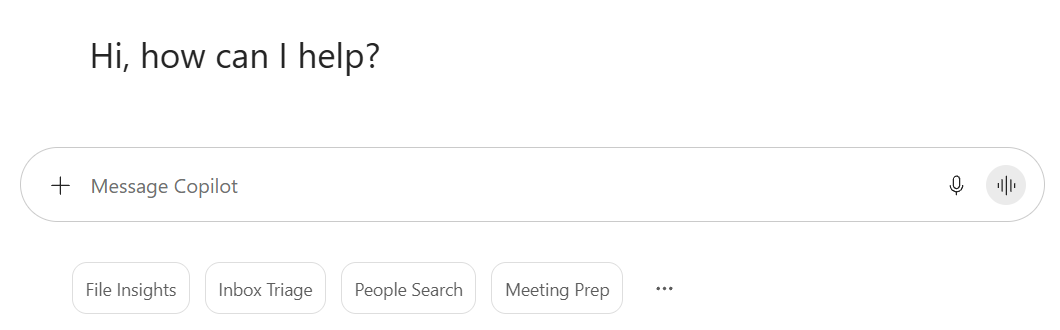
If you’d rather start from a button than a blank box, the empty Copilot Chat screen offers starter chips when Copilot is scoped to your work data. The prompt above is narrower: one project, one time window.
Say you’re a marketing director and the agency has sent a 45-page planning document. You won’t read it before Thursday, but at 9:00 you can decide where your reading time goes.
It decides where your reading goes. It does not replace the reading.
In Word, Copilot can answer questions about the open document and gives references to where it found the information.[5] Word’s automatic summary, for documents of 200 words or more on OneDrive or SharePoint, needs a Microsoft Copilot (work) licence, and Microsoft says Copilot doesn’t always cite later content in a long document.[6] So open the sections it points to, and read the two that matter in full.
Our guide to Copilot meeting prompts starts from the meeting chat and the transcript. These two habits start earlier, from the paper that arrives before the meeting and the archive of what was already decided.
Say you’re an operations manager and a budget proposal lands twenty minutes before the review. You can’t audit it, but you can see what it leans on.
The last sentence ties the answer to the paper, not to what budgets usually look like.
I’d bring the objection as a question rather than a verdict. Copilot can find the weak joints inside the paper, but it doesn’t know the finance director dislikes the vendor, or that a similar proposal failed last year. You supply that.
Say an HR business partner is asked whether the parental-leave wording was ever agreed with Legal. She half remembers a Teams thread and a meeting, and could spend twenty minutes finding them. She could also ask.
“Not settled” is a useful answer. It stops Copilot inventing a decision to please you.
This one leans hardest on your licence. Microsoft says people with the add-on can point Copilot at Teams conversations, meetings, emails and files by typing /, while people without it can reference files only.[4] If Copilot can’t find the decision, read that as “not in what I can see,” which isn’t the same as “didn’t happen.” Open the source before you tell anyone the matter is closed.
Say you’re a marketing manager with two agency proposals and a Friday deadline. Building a comparison by hand is an hour, and each proposal is written to look good on its own terms, so the table ends up in the agency’s categories instead of yours.
Reference both files with /. Write your criteria before you attach anything.
Microsoft’s page on referencing content says people without the add-on can reference files in Copilot Chat, so this one doesn’t depend on your licence.[4] The “not stated” cells are the most useful part, because each is a question to send back. The choice is still yours.
Typing / in the prompt box opens a picker, and its Files tab is where you choose the two proposals.

Before you commit a forecast or project plan, hand it over for the one thing you’re badly placed to do yourself: read it as a stranger who wants it to fail.
Asking for fixes straight away tends to tidy the plan instead of testing it.
Treat the output as questions. Copilot will produce plausible failure reasons whether or not they apply to you, so cross out two and act on the one that made you wince.
These two are about your own work, at the moment it’s about to leave your hands. Our roundup of lesser-known Copilot features makes a similar point about finished work: a bad suggestion costs a few seconds of reading, and a missed error costs far more once it’s sent.
Say you’re a finance analyst and your one-page contract summary is going to the CFO. Every sentence came from somewhere. The risk is the one that drifted a little.
The second half catches omissions, which are harder to spot in your own writing.
In Word, the reference-a-file button lets you include up to three existing files, or you can type / and the file’s name.[5] Copilot Chat works too. Read the flagged passages against the original yourself. A checker that sounds sure can still be wrong, so this narrows where you look without replacing the look.
Say an HR partner gets an email from a manager with five questions folded into three paragraphs. She writes a careful reply, and two days later the manager asks question four again.
It checks coverage, not tone. Check the tone yourself.
Paste only what your organisation allows. Microsoft says Copilot only references work content you’re already authorized to access and doesn’t train public models on your company’s data,[2] but that’s the vendor’s statement, and your own data policy governs a sensitive thread.
Say you’re an HR business partner at ten to five. Two meetings, six chats and a dozen emails have gone by, and twice in them you said “I’ll look into it.” By tomorrow you’ll remember one.
Undated items are the ones that slip. Add a date to each before you close the laptop.
The reach depends on your licence as in habit 1: Copilot Chat in Outlook covers the inbox, and the add-on extends the same chat to Teams conversations.[3] Expect gaps: it can’t see a promise made on a call nobody wrote down, or tell a commitment from a passing “maybe I could.” Treat the list as a nudge to your memory. If meetings are where you make most promises, prompt 5 in the meeting guide does this from the transcript.
The last habit keeps the other nine honest. Microsoft describes Copilot’s answers as anchored in your work and the web, “complete with citations you can check.”[2] Those only help if somebody clicks them, so open the source of the one claim you’re about to repeat and read the sentence around it.
Run it on any answer that will leave your desk.
Open the source before the claim leaves your desk.
A citation tells you where to look. It doesn’t tell you the summary got it right.
Look back over the ten and Copilot doesn’t make the call in any of them. It finds, lines up, questions and flags. Someone with your name on the work still decides what counts as settled, which objection is real and what goes out the door.
| The move | What Copilot does | What you still own | How it gets checked |
|---|---|---|---|
| Find (1, 4, 9) | Pulls together the messages, meetings and files on a topic, with links | Deciding what counts as settled | Open the cited message. “Not found” means not found in what Copilot can see |
| Compare (5) | Sets two documents against your criteria and quotes its lines | The choice, and the questions to send back | Check two quoted lines against the originals |
| Challenge (3, 6) | Raises assumptions and likely objections | Deciding which are real in this room | Raise the top one in the meeting and note what happens |
| Verify (7, 8, 10) | Flags unsupported statements and missed questions | Fixing the draft and deciding what goes out | Read the flagged passages, not only the list |
The habit numbers refer to the day-map.
Which habits matter most depends on the job, and that’s my own read, not something measured. A sales manager tends to get the most from habits 1 and 9, a finance analyst from 7 and 10, an HR partner from 4 and 8, a marketer from 2 and 5. Start with the pair nearest your role, because adding all ten at once is a quick way to end up doing none.
A habit needs a trigger you already have. Tie it to opening Outlook, your first meeting or closing the laptop.
After two weeks, judge each habit on the lens we use for any AI workflow. Answer three questions:
Logins and prompt counts measure only the first. Here’s what the check looks like filled in for three habits.
| Habit | Use | Persistence | Impact | Verdict |
|---|---|---|---|---|
| 9. What I agreed to today | Four days out of five | Yes | Yes: surfaced an undated Thursday deliverable | Keep, at a fixed time |
| 5. Options against criteria | Once | No: no second decision came up | Yes: three questions went back to a vendor | Keep, triggered by “two proposals on my desk” |
| 2. Reading triage | Three days | Yes | No: I read everything anyway | Change the prompt to ask for three sections, then read only those |
Three yeses: keep. Use and persistence without impact: change the prompt or the moment. Use alone: drop it or move it.
Building habits is what we’d call reinforcement: training builds capability, workflow design gives it somewhere to be used, reinforcement turns it into behavior, and adoption is what you see once it sticks. Our piece on what makes an AI-powered professional different covers the Tool x Workflows x Behavior idea in full. One person can start alone this week. For a team, structured corporate training shortens the learning curve and builds shared habits so they don’t rest on one enthusiastic person. And for a habit that runs without you, see scheduled prompts.
Pick one habit from the day-map, tie it to a trigger, and run it for two weeks. Then keep it, change it or drop it.
Most likely a licence difference. Microsoft says what Copilot Chat in Outlook can do depends on whether your admin has assigned the Microsoft Copilot add-on to your work or school account. Without it, the / command reaches files only, not Teams conversations. Ask your admin which licence your account carries, and try habits 2, 3, 5, 6, 7 and 8 in the meantime, since they run in Copilot Chat on a file or pasted text.
Two weeks is my rule of thumb, not a research finding: one week to try it, and a second to see whether you return without a reminder. If you needed a reminder in week two, suspect the trigger before the habit and move it to something that already happens in your day.
Next to the trigger, not in a folder. Paste each prompt into a note you already open at that moment: pinned beside your calendar for habit 3, or at the top of your inbox notes for habit 1. If you find yourself searching for a prompt, the habit is one step too far from the moment it belongs to.
Microsoft says it doesn’t train public models on your company’s data. That’s the vendor’s statement, so your organisation’s rules on sensitive information still apply. If you’re unsure, ask IT or compliance before you paste a confidential thread.
Scheduled prompts run on their own at a set time, so they suit work you want done whether or not you remember. These ten you run yourself, at a moment in your day, on something you already have. The Teams meeting prompts work from a meeting chat and its transcript; only habit 9 touches meeting commitments, and only lightly.
Every capability described here was checked against Microsoft Support pages on 29 September 2026: the Copilot Chat page for cost, the Outlook chat page, the page on what information Copilot uses, the page on referring to files, and two Copilot in Word pages. The prompts are our own and were written for this article, not Microsoft-published examples. Three things were checked and left out. Word’s Activity tab, described in third-party write-ups as a summary of comments and edits since your last visit, is out because the Microsoft pages I could read didn’t confirm it. A widely quoted study of how long habits take to form is out because the journal page and the psychology database both refused automated access, so I couldn’t read it myself, and there are no habit-timeline numbers here as a result. The Work and Web toggle is out too, because Microsoft’s pages now use different wording for that layer and the interface has moved. The two screenshots were captured live in Microsoft 365 Copilot Chat in September 2026, and interfaces change often, so check the picker and the starter chips against what you see.
