
Most people meet Copilot as a chat box and stay there. For work that runs for weeks, a Notebook keeps the files, the instructions and the background in one place, and this guide shows when to open one and how to keep it current.

Use a chat when you have a question. Use a Copilot Notebook when you have a subject: a project with several files, recurring questions and a tone you’d otherwise re-explain. Add the references once, paste in your instructions once, and ask questions that need two or more documents at the same time. Then keep it current: one named owner, a monthly clear-out of old files, and a habit of opening the source before anything leaves your desk.
Three weeks into planning an autumn customer webinar series, a marketing manager’s Copilot Chat history tends to look the same. It’s been useful, and it has left behind eleven conversations: “Webinar ideas,” “Webinar ideas v2,” “Email copy,” “Email copy NEW,” and seven more with titles nobody remembers. Each new thread started with the same pasted paragraph about the audience (operations managers at mid-sized manufacturers) and the same warning not to promise a price.
On Tuesday the sales lead asks what was decided about the date of the second session. It was said to Copilot at some point. It’s in thread seven, or maybe nine. Four conversations later it turns up, and the calendar gets checked anyway, because by then nobody trusts their own search.
No single answer went wrong. The trouble is that a tool built for questions got used on a piece of work that’s really a subject: the same brief, the same speaker bios, last year’s attendance sheet and two sets of call notes, all of which matter again next week. So here’s the whole guide in two sentences. A chat is for a question. A Notebook is for a subject you’ll keep asking about.
A chat is for a question. A Notebook is for a subject you’ll keep asking about.
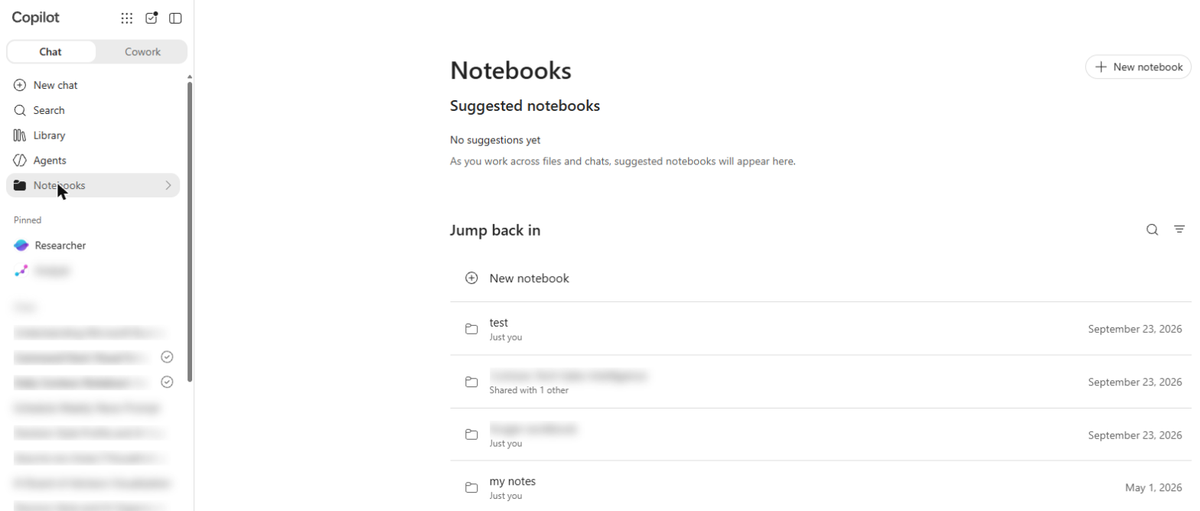
That’s the job Microsoft describes for Copilot Notebooks: a workspace for the content that matters most to a task, which you can open in the Microsoft Copilot app or in OneNote.[2] The rest of this guide covers when that’s worth doing, how to set one up without ceremony, and what to check so it doesn’t go stale.
Three things change, and each one removes a small chore you’ve probably stopped noticing.
The material stays put. You add files, pages, links, meeting notes or earlier Copilot conversations as references, and Copilot answers from those.[3] Microsoft’s page on reference files says they stay current, so when a document is edited the answers follow it.[4] The instructions stay put too: you write the audience, tone and format once, instead of pasting them into every new chat. And the scope is narrower on purpose, because Microsoft says Copilot uses only the references you’ve added, not your whole OneDrive, email, Teams chats or the web.[1]
Notice what isn’t on that list. A Notebook doesn’t know more than the files you give it. It’s a narrower tool than a chat, which is the point, and it means the quality of the answers depends more on what you put in than on how clever the prompt is.
A good Notebook is a small, chosen pile.
None of that means moving everything into a Notebook. It takes ten minutes to set up and a little upkeep, which is a poor trade for a quick question. If what you want is to keep answers to approved source material, our guide to out-of-the-box ways people use Microsoft Copilot covers that angle. This guide is about the other reason to open one, which is that the work keeps coming back, and the test below is how I’d decide.
| # | Question | Webinar series |
|---|---|---|
| 1 | Will you ask about this material more than once in the next two weeks? | Yes: dates, copy, logistics |
| 2 | Does it draw on more than three files, pages or meeting notes? | Yes: brief, bios, sheet, two sets of notes |
| 3 | Would you repeat the same background in each new conversation? | Yes: audience, price warning |
| 4 | Will the source files change while the work runs? | Yes: the brief gets revised twice |
| 5 | Does the output need the same tone or format each time? | Yes: plain English for operations managers |
Scoring: 0 to 1, stay in a chat. 2 to 3, try a Notebook with three to five references and see whether you miss it. 4 to 5, open one now. A rule of thumb from us, not a Microsoft threshold.
Here’s the setup, using the labels in the Copilot app as of October 16, 2026. Interfaces move around, so if a button has a different name when you get there, look for the nearest equivalent.
Before you add anything, fill in a card. It takes five minutes, and the two rows people tend to skip are the ones that help later: what you’re leaving out on purpose, and who reviews the list.
| Field | Autumn webinar series |
|---|---|
| Subject | Three customer webinars, September to November, for operations managers at mid-sized manufacturers |
| Questions it answers | What did we decide, what changed in the brief, what do speakers need, what does sales still need |
| Starting references | Current brief, audience profile, last year’s attendance sheet, speaker bios, notes from two planning calls |
| Left out on purpose | The 2024 brief (superseded), the sales forecast, anything with customer names |
| Owner and review | Marketing manager, first Monday of each month |
An example card filled in for a webinar series. Copy the fields, not the details.
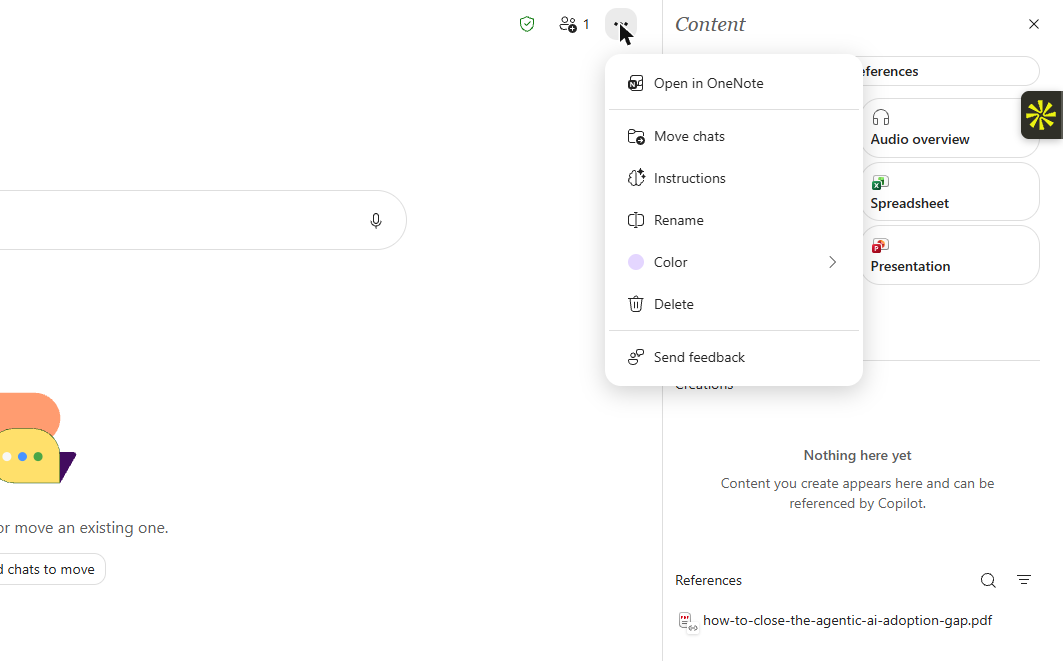
Then the instructions. This is the paragraph you were pasting into all eleven threads, written once. Swap in your own audience and your own warnings.
| You’re helping me plan our autumn customer webinar series. Use only the references in this notebook. When you state a fact, name the file it came from. If the references don’t cover something, say so instead of guessing. Our audience is operations managers at mid-sized manufacturers. Write in plain business English with short paragraphs, no hashtags and no emojis. Don’t promise a price or a discount. If two references disagree, tell me which two, quote the lines, and say which file looks newer. |
Microsoft’s own example instructions cover format, language and tone in the same way. Naming the source file is something you’re asking for, so check it rather than assume it.
Two lines in that block do most of the work: “say so instead of guessing” and “tell me which two files disagree.” Without them, a Notebook can hand you a smooth answer even when the references are thin, and a smooth answer on thin evidence is the failure you most want to see.
Once the references are in, the decision rule for what to ask is short. Ask the Notebook the questions that need two or more of your documents at the same time: compare, find, challenge, fill a gap. A question one file can answer is fine in either place, and a question with no files behind it belongs in a chat.
| Prompt | What you check |
|---|---|
| “Compare the March brief with the current brief and list what changed in audience, dates and offer. Name the file for each change.” | Open both and confirm the two biggest changes |
| “Where do these references disagree? Give me the two lines and the files they came from.” | Whether each disagreement is real or just different wording |
| “List every decision recorded in the call notes, who owns it, and which have no date.” | Decisions it missed, and any it invented |
| “Write a one-page brief for someone joining tomorrow. Mark anything you inferred.” | The lines marked as inferred, which are yours to confirm or cut |
| “What will the sales lead ask about this plan that these references can’t answer?” | Whether each gap is real, and who can fill it |
Each prompt needs more than one source and asks for the file name. Adapt the nouns to your own project.
The pack leans on one habit, asking for the file name, because the Microsoft pages I read don’t describe how answers show their sources. Asking in the prompt costs nothing and makes the next step quick: open the file and look.
When an answer comes back, sort its lines into three piles: quoted from a file, summarised from a file, and inferred. The first needs a glance at the source. The second needs the file open. The third is Copilot’s guess about what the files imply, and it’s yours to confirm or cut. Asking Copilot to mark which is which, as the fourth prompt does, makes the sorting quick.
If an answer is going to leave your desk, open the file it came from first.
Reading the file takes two minutes, a small price for not telling a speaker the wrong date. If your work is built around marketing tasks like these, our guide to Copilot workflows for marketing teams shows where a Notebook fits into a normal week.
The first thing to go wrong is usually a stale file. In October a colleague asks the webinar notebook what the registration fee is. The notebook holds the March pricing deck and the June update, because nobody took the March one out. The answer quotes March.
It’s fluent, it names a file, and it’s out of date.
References stay current when a file is edited, but I couldn’t find anything on Microsoft’s pages saying a Notebook will notice that one file has been replaced by another. So I’d treat that as the owner’s job. It looks like upkeep and I’d say it’s the main ongoing cost of a Notebook, which is why the set-up card has a “left out on purpose” row.
Every file in a Notebook has an owner who can say why it’s there and when it comes out.
Four other limits are worth knowing before you build on one.
Who does what, once a Notebook is running, tends to blur. This is the split I’d write on the first page of the Notebook itself.
| What AI does | What the human still owns | How it gets checked |
|---|---|---|
| Summarises, compares and drafts from the references you chose | Which files go in, which come out, and what leaves the notebook | Owner opens the source file for any claim going outside the team |
| Drafts the weekly status or next-step list | Decisions, dates and commitments | Project owner reads it against the call notes before it’s sent |
| Nothing, for personnel files or anything under legal hold | The decision to put it in at all | A named approver, using our fit test for when not to use AI |
A starting split for a two-person notebook. Keep the last row even for a small team.
| # | Check | If no |
|---|---|---|
| 1 | Is every file the current version of something? | Remove the old one and note it on the card |
| 2 | Does each file still have a reason to be here? | Remove it. You can add it back later |
| 3 | Do the instructions still match the audience and the offer? | Edit and save them |
| 4 | Does one file named in a recent answer say what the answer said? | Tighten the instructions and tell the team |
| 5 | Does everyone who can open it still need to? | Remove them from the share |
Five yeses, carry on. Two or more nos, spend an extra twenty minutes before anyone else relies on it.
“Use a Notebook for ongoing work” lands differently depending on whose work it is. The set-up is the same, but the contents and the risks aren’t.
| Role | One Notebook per | First references | Watch for |
|---|---|---|---|
| Marketing manager | Campaign or series | Brief, audience profile, last results sheet, brand rules | Old briefs left in the list |
| Analyst | Recurring analysis pack | Metric definitions, data dictionary, last quarter’s deck | No charts from a Notebook, so keep them in Excel |
| HR business partner | Policy area | Current policy, change log, draft FAQs | Personal data going in |
| Project manager | Project | Charter, risk log, decision log, meeting notes | One decision recorded two ways |
Starting points, not a standard. Each row is one subject with a start and an end.
In practice the marketing manager’s questions are mostly about what changed, the analyst’s about what a number means, the HR partner’s about what the policy says today, and the project manager’s about what was decided. Same tool, different first prompt. It’s worth settling that on the card, because a Notebook built for the analyst’s questions will frustrate the person who wanted the project manager’s.
The pattern across the rows is that a good Notebook has a boundary: a campaign, a pack, a policy, a project. When there’s no end date or clear edge, it turns into a junk drawer, and a junk drawer is where the March pricing deck comes from. If you’re tempted by one big Notebook called “Marketing,” split it by subject first.
It’s tempting to count Notebooks created, and that number says very little. A better lens, the one we use at Future Factors for any AI habit, has three steps: use, persistence and impact.
| Step | What to look at | What it tells you |
|---|---|---|
| Use | Did the owner ask it something in the last two weeks? (The Microsoft pages I read don’t describe a usage report for Notebooks, so ask.) | Whether it’s alive |
| Persistence | In month two, has the reference list been edited, with files removed as well as added? | Whether it’s maintained or just accumulating |
| Impact | Can you name one decision, brief or status note this month that came out of it, and was it quicker to produce? | Whether anyone would notice if it disappeared |
The owner checks Use and Persistence at the monthly review, and Impact with their manager each quarter.
It also helps to keep the parts of change separate, because they tend to blur. Showing a marketing manager the card, the instruction block and the question pack is training: it builds capability. A weekly project with a real Notebook behind it is workflow design, which gives that capability somewhere to land. The monthly review and a manager who asks to see the Notebook are reinforcement, and adoption is what you see when the habit is still there in month three. For benchmarks on what that looks like across a rollout, see our guide to what good Copilot adoption looks like.
Teams can start this on their own with the tables above, and many will. Hands-on training shortens the learning curve in specific ways: people practise on their own project rather than a demo, a whole team learns one standard for what goes into a Notebook and who prunes it, and the judgment calls, like what shouldn’t go in, get discussed before they cause a problem.
Here’s a first step for this week. Pick the one project you have open with more than three files and a recurring meeting. Fill in the card, create the Notebook, paste in the instruction block, and ask it the second question from the pack. Then put the first Monday of next month in your calendar.
Start with the references. Microsoft says Copilot only uses content from the sites, folders or files you’ve added and have permission to open, so check that the file is on the list, that you can open it yourself, and that its type is supported (Word, PowerPoint, Excel, PDF, Loop, Pages, text and OneNote pages are named). If the list is long, check the file’s position as well, since only the first batch of a long list is used for grounding.
Five is our rule of thumb, and it’s a judgment rather than a Microsoft figure. With five you can still tell which file an answer leaned on, and each gap you hit tells you what to add next. The limits Microsoft publishes are ceilings, and a Notebook that fills them tends to be one nobody has pruned.
Microsoft’s Learn page lists Copilot Chat conversations among the things you can add as references, so a thread that holds a decision or a finished piece of text can move into the Notebook instead of staying buried. Add only those. A thread of abandoned drafts adds noise, and the Reference Rule applies to chats as much as to files.
Microsoft says people you share with are invited to the linked files automatically where possible, and that some files may stay restricted if permissions can’t be transferred, in which case they have to request access individually. Their conversations with Copilot stay their own. Open the reference list before you share and remove anything they shouldn’t see.
No. Microsoft’s pages treat “Copilot Notebooks or OneNote” as a comparison, and its page on finding your notebooks says you can find Copilot Notebooks in both the Microsoft Copilot app and OneNote. Our rule of thumb: use a Copilot Notebook when you want questions answered from a chosen set of files, and a OneNote notebook for notes you write and organise yourself.
Every product detail here comes from Microsoft’s own support and Learn pages, read on October 1, 2026, and the button labels were checked in the Copilot app on October 16, 2026. Microsoft’s pages disagree on how many references a Notebook can use, so the guide gives the figures from the reference-files page and says where another page differs. Two Microsoft Tech Community posts on the updated Notebooks experience did not load their article text, so nothing here relies on them. No usage or return-on-investment figures for Notebooks appear because none came from a primary source. The webinar series, pricing deck and roles are examples, not a real project. The five-question test, the monthly review and the three rules are Future Factors’ own judgment, not Microsoft guidance.
